
Introduction
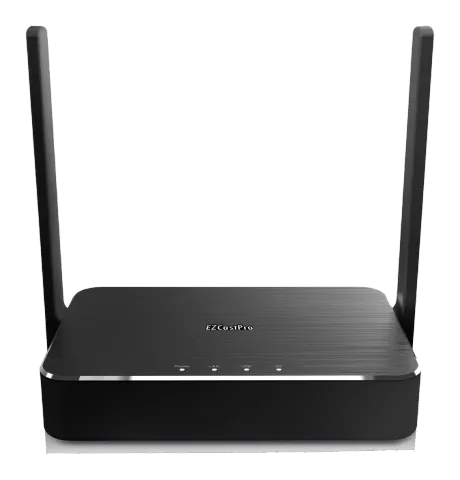
Thank you for purchasing EZCast Pro Box II.
This Quick Start Guide is designed to guide
This Quick Start Guide is designed to guide you through the installation.
EZCast Pro Box II realizes the true BYOD
EZCast Pro Box II realizes the true BYOD meeting room by supporting Windows,
macOS, Android, iOS, and ChromeOS.
Learn More
Please visit www.ezcast-pro.com for more information.
Package Contents
- EZCast Pro Box II
- HDMI A to A Cable 1m
- EZCast Pro Box II QSG5V Universal Adapter
- HDMI Adapter with HDMI female port, VGA female port, 3.5mm port
System Requirements
- Windows 7/8/10
- macOS 10.11 and above
- Android 5.0 and above
- iOS 10.0 and above
- ChromeOS
Note: Please note that all specifications are subject to change without prior notice.
Hardware Overview Part I
Back Panel
| Port | Description |
|---|---|
| DC Port | Connect to 5V/2A Universal Adapter |
| Power Button | Switch ON/OFF for power |
| Reset Button | After powering up, press and hold the reset button to reset to factory default setting |
| USB Port | For USB HID Reverse Control |
| Ethernet Port | Support PoE and Gigabit internet access by connecting to RJ45 cable |
| HDMI Port | Support HDMI Output by connecting to HDMI A to A cable |
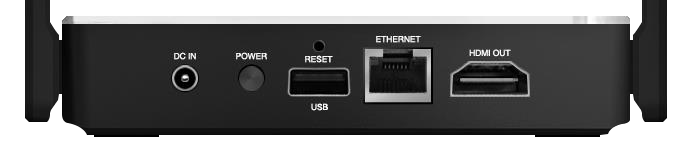
- DC Port
- Power Button
- Reset Button
- USB Port
- Ethernet Port
- HDMI Port
Hardware Overview Part II
LEDs
| LED | State | Description |
|---|---|---|
| Power | White | Power ON |
| Power | Grey | Power OFF |
| LAN | White | Connected to Ethernet cable |
| LAN | Grey | Not connected to Ethernet cable |
| USB | White | Connected to USB device |
| USB | Grey | Not connected to USB device |
| Wi-Fi | White | Connected to Wi-Fi |
| Wi-Fi | Grey | Not connected to Wi-Fi |
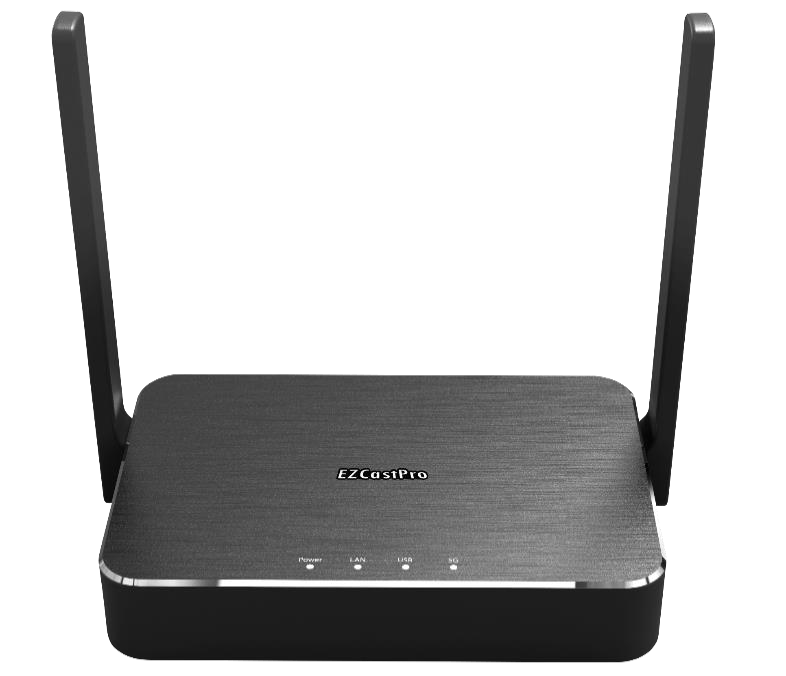
- Power
- LAN
- Wi-Fi
- USB
Product Installation
- Connect the Universal 5V Adapter to the EZCast Pro Box II’s DC port.
- Connect the HDMI A to A cable to the EZCast Pro Box II’s HDMI port.
- Press the Power button to activate EZCast Pro Box II.
Note: For better Wi-Fi connection, please place the EZCast Pro Box II in line of sight.
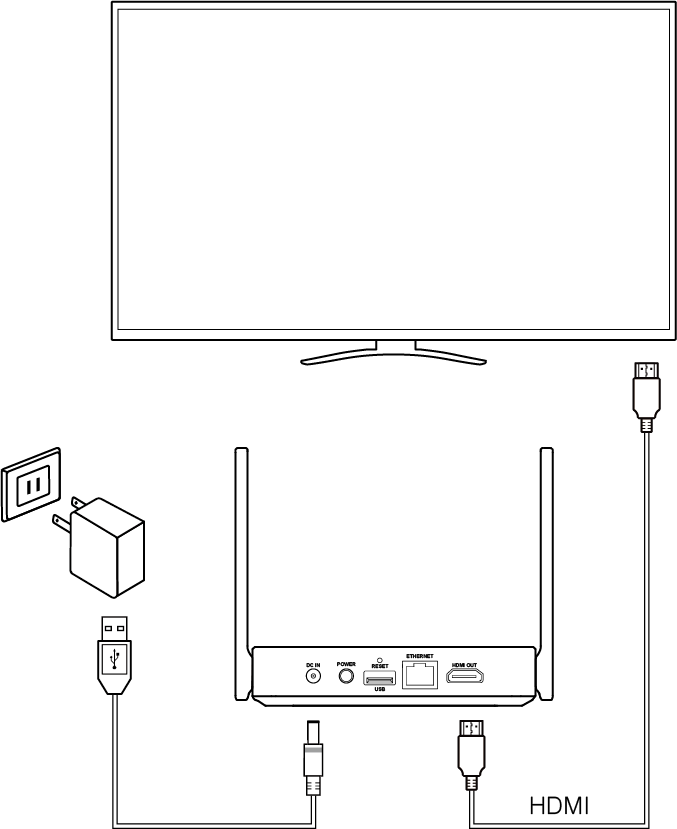
Note: If you need to output VGA signal, please use the HDMI to VGA adapter we bundled.
Cast with EZCast Pro App
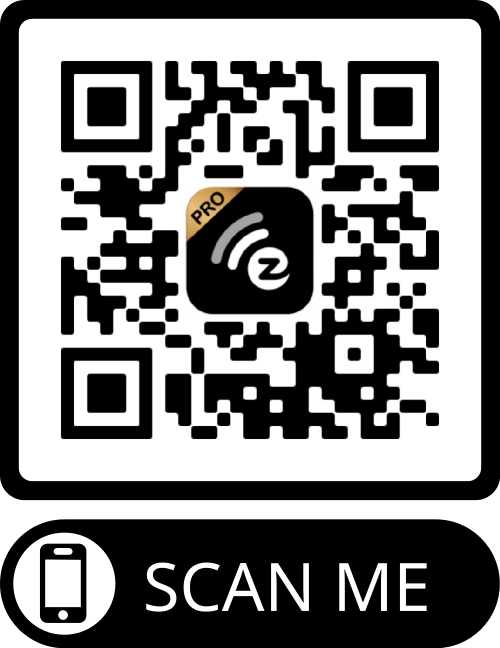
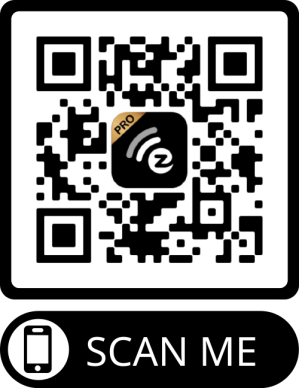
Step 1: Scan the QRCode below to
Scan the QRCode below to download the EZCast Pro App.
Step 2: Install EZCast App on your device.
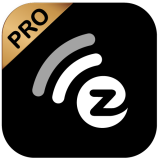
Step 3: Find EZCast Pro Box II’s SSID in
Find EZCast Pro Box II’s SSID in your device’s Wi-Fi list, enter the password.
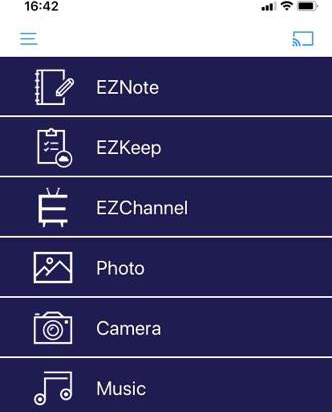
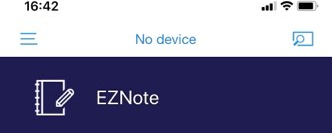
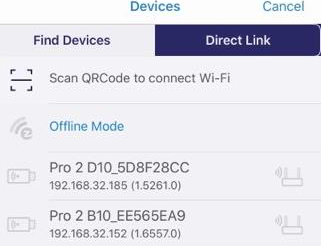
Step 4: Open EZCast Pro App and connect
Open EZCast Pro App and connect to the EZCast Pro Box II.
Step 5: Start casting or using the
Start casting or using the value-added functions in EZCast Pro App!
Cast with Native Protocol
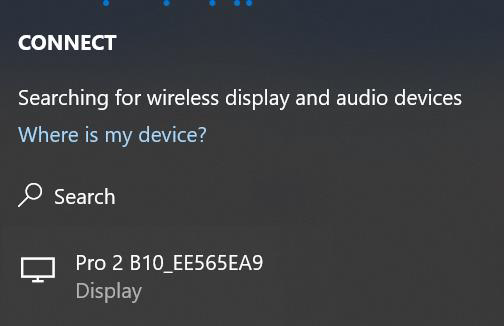
Miracast
For Windows user, please press Win + K.
and select your EZCast Pro Box II.
For Android user, find “Wireless casting” in Setting to select your EZCast Pro Box II.
Please note that each mobile device manufacturer has its own naming rule for Miracast.
Cast with Native Protocol
AirPlay
Step 1: Find EZCast Pro Box II in your
Find EZCast Pro Box II in your device’s Wi-Fi list, and enter the password.
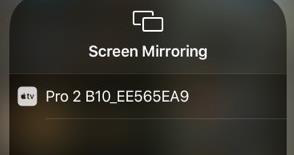
Step 2: Open “Screen Mirroring” in your
Open “Screen Mirroring” in your device to select your EZCast Pro Box II.
Specifications
EZCast Pro Box II B10
| CPU | Dual Core CPU, 1Ghz max |
|---|---|
| Output/Input Resolution | Up to 4K @ 30Hz |
| I/O | HDMI Ethernet USB Type A |
| Wi-Fi | 802.11ac 2T2R, Max bandwidth 866Mbps (5Ghz) |
| Ethernet | 10/100/1000M, support POE |
| Power | DC 5V, 2A |
| Working Temp | 0~40°C |
| Storage Temp | -20~70°C |
Compliance
Safety Notice
- Read and follow all these safety instructions.
- Heed all warnings.
Caution: DO NOT expose this product to rains or moisture.
Caution: DO NOT use this product in the location where it might be submerged by water.
Caution: Place this product indoor and away from windows and doors to avoid lighting strikes.
FCC STATEMENT
1. This device complies with Part 15 of the FCC Rules.
Operation is subject to the following two conditions:
(1) This device may not cause harmful interference.
(2) This device must accept any interference received, including interference that may cause undesired operation.
Changes or modifications not expressly approved by the party responsible for compliance could void the user's authority to operate the equipment.
Note: This equipment has been tested and found to comply with the limits for a Class B digital device, pursuant to Part 15 of the FCC Rules. These limits are designed to provide reasonable protection against harmful interference in a residential installation. This equipment generates uses and can radiate radio frequency energy and, if not installed and used in accordance with the instructions, may cause harmful interference to radio communications. However, there is no guarantee that interference will not occur in a particular installation. If this equipment does cause harmful interference to radio or television reception, which can be determined by turning the equipment off and on, the user is encouraged to try to correct the interference by one or more of the following measures:
- Reorient or relocate the receiving antenna.
- Increase the separation between the equipment and receiver.
- Connect the equipment into an outlet on a circuit different from that to which the receiver is connected.
- Consult the dealer or an experienced radio/TV technician for help.
FCC Radiation Exposure Statement:
This equipment complies with FCC radiation exposure limits set forth for an uncontrolled environment. This equipment should be installed and operated with minimum distance 20cm between the radiator & your body
Note: ©2019 Actions Microelectronics Co., Ltd. All right reserved.
EZCast, and EZCast Pro are trademarks of Actions Microelectronic Co., Ltd., registered in China and other countries. Other product and company names mentioned herein may be trademarks other respective companies.
Legal & Compliance
Product identification
Model: EZ-PB10 – manual version 1.0
Warranty and liability
The manufacturer grants the full statutory warranty on all new devices. As the manufacturer has no influence on installation, the warranty only applies to the product itself. If you detect a fault or damage, please contact your dealer and provide your sales slip or invoice as proof of purchase.
The manufacturer is not liable for damage to persons or property caused by improper installation, operation or maintenance not described in this manual. Do not alter or modify the product or its accessories. Any use other than described in this manual is not permitted and voids warranty and guarantee.
Trademarks and disclaimer
Product model and logo are trademarks. All other company and product names mentioned are trademarks of their respective owners. All rights reserved. No part of this publication may be copied or reproduced without prior written permission. We reserve the right to make changes to the device, packaging or manual and accept no liability for misprints.
FCC
1. This device complies with Part 15 of the FCC Rules. Operation is subject to the following two conditions: (1) This device may not cause harmful interference. (2) This device must accept any interference received, including interference that may cause undesired operation. This equipment has been tested and found to comply with the limits for a Class B digital device, pursuant to Part 15 of the FCC Rules.
Disposal of electrical and electronic equipment
WEEE reg. no.: DE 93847290
The crossed-out wheelie bin symbol on the product, packaging or in this manual means that electrical and electronic equipment must not be disposed of with household waste at the end of its life. Hand in old devices free of charge at a public collection point or return them to a distributor obliged to take them back. Remove batteries and lamps that can be removed without destroying the device before handing it in, and delete any personal data stored on the device. Details are regulated by national law. By returning old devices you help protect the environment.
Packaging
Dispose of packaging separately by material (paper/cardboard, plastics) via the local collection systems. Keep packaging material away from children – risk of suffocation. Packaging register LUCID: DE5958616449295.