
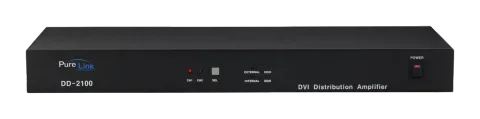
Description, General Specification
General Specification
Purelink DD-2100 regenerates two digital video sources into multiple digital displays.
| ITEM | DESCRIPTION |
|---|---|
| Model Name | DD-2100 |
| Input Signal | DVI Single Link , 2port |
| Output Signal | DVI Single Link , 10ports, |
| Resolution | Supports all standard display resolutions up to WUXGA (2048 X 1080 / 1920 X 1200 @ 60Hz), UXGA, SXGA, XGA, VGA & 480i/p, 720i/p, 1080i/p) |
| Receptacle | DC Power Jack |
| DVI | |
| HDCP Support | Yes |
| Power Consumption | DC +12V ,13W Max |
| Dimension | 425(W) x 165(D) x 45(H) mm |
| Weight | 4.6 lbs. |
Environmental and Reliability Specifications
Operation and Reliability Specification
Operating Conditions
- Temperature : 10℃~ 40℃
- Humidity : 10% ~ 80%, non-condensing
- Altitude : maximum 3,000m
Transportation Conditions
- Temperature : -25℃~ 60℃
- Humidity : 5% ~ 95%, non-condensing
- Altitude : maximum 15,000m
Storage Conditions
- Temperature : -20℃~ 45℃
- Humidity : 5% ~ 95%, non-condensing
- Altitude : maximum 3,000m
Reliability Specifications
- MTBF : more than 50,000 hours at 90% confidence level
- Reliability specification and items : refer to “Specification of reliability test for LCD monitor
Main Features
High Quality Picture - No Signal Loss and Digital Noise Free
Our Distribution Amplifiers are built to deliver the highest quality picture preserving the native resolutions of the video sources without any signal loss. At the same time, the digital noises that may affect the picture quality will be eliminated. Due to the nature of the digital signals and passing through multiple stages of connection when using distribution amplifiers, it is important to eliminate the digital noises and boost the signal strength to preserve/enhance the video signal quality.
Signal Amplification for signal reliability and long length signal transmission.
Our 12V power adapter supplies adequate power to amplify the video signals from the video source. This is necessary as the overall length from the video source to the displays is longer when using the distribution amplifiers (distance from the video source to the distribution amplifier + distance from the distribution amplifier to the display). In most cases, the overall distance that the DVI signal will need to travel is over 10ft. Due to the nature of DVI signals, amplification is necessary to warrant the video quality and reliability. (Without amplification, there may be occasional blackouts or blinking effects) With this amplification feature, your video display can be extended up to 2300ft using our fiber optical DVI cables.
HDCP (High-bandwidth Digital Content Protection) Compliant
Our DVI distribution amplifiers are fully HDCP compliant. Many video sources such as DVD players and Satellite/Cable Receivers are HDCP encrypted. For these video sources to be displayed correctly, HDCP compliant devices (e.g., TV, DVI Switch, distribution amplifier) are required.
Video Connection
- Turn off all components before connecting.
- Connect your video source’s DVI output port to the DD-2100’s DVI input port using standard DVI cables (not included).
- Connect your DVI display’s DVI input port to DD-2100’s DVI output port.
- Plug the 12V power supply into the switch’s power input port.
- Plug the 12V wall mount power supply into the wall outlet.
- Turn on power switch
- Turn on your displays.
- Turn on your video source.
External EDID and Internal EDID Set up
External EDID Set up
- Unplug all DVI cables,
- Connect Monitor or HDTV to “OUTPUT 1” on the back of the DD-2100
- Turn on the DD-2100 and HDTV
- Press and hold “EXTERNAL EDID” button on the front of the DD-2100 for 3 seconds until RED LED light is on.
- Turn off DD-2100
- Reconnect all device following above “Video Connection”
Internal EDID Set up (Factory Default Setting)
- Unplug all DVI cables
- Turn on DD-2100
- Press ”INTERNAL EDID” button on the front of the DD-2100 for 3 sec until RED LED light is on.
- Turn off DD-2100
- Reconnect all device following above “Video Connection”
Note: What is EDID?
Extended Display Identification Data is a VESA standard data format that contains basic information about a display and its capabilities, including vendor information, maximum resolution, color characteristics, factory pre-set timings, frequency range limits, and character strings for the monitor name and serial number
Mechanical Specification
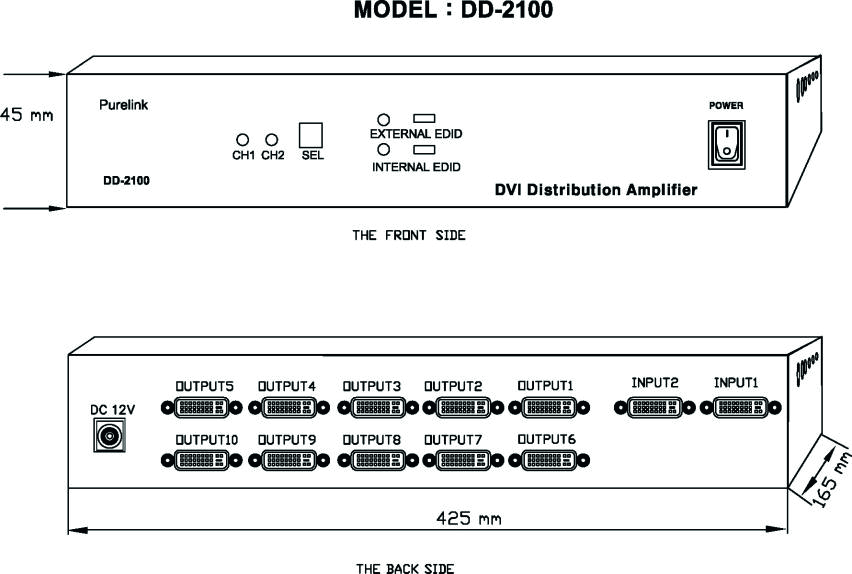
- Dimensions
- DD-2100 : 425(W) x 165(D) x 45(H) mm
- DC 12V : DC Power Input (+12 V)
- POWER : Power On / Off Switch
- CH1 : Input Channel 1 Indication LED
- CH2 : Input Channel 2 Indication LED
- SEL : Input Channel Selecting Switch
- INPUT1~2 : DVI Input Signal
- OUTPUT 1 ~ 10 : DVI Output Signals
- EXTERNAL EDID : External EDID Setting Switch
- INTERNAL EDID : Internal EDID Setting Switch
Technical Specification
- Frequency bandwidth: 1.65 Gbps (Single Link)
- Supporting Graphic Resolution: Supports all standard display resolutions up to WUXGA (2048 X 1080 / 1920 X 1200 @ 60Hz), UXGA, SXGA, XGA, VGA & 480i/p, 720i/p, 1080i/p)
- Inputs: DVI x 2
- Output: DVI x 10
- Power supply: DC 12V, 3A Adapter included.
Connector Pin Assignment
| Part No. | Pin No. | Description |
|---|---|---|
| DVI-D 29pin | 1 | TMDS DATA 2M |
| 2 | TMDS DATA 2P | |
| 3 | TMDS DATA 2/4 Shield | |
| 4 | N.C | |
| 5 | N.C | |
| 6 | DDC Clock | |
| 7 | DDC Data | |
| 8 | N.C | |
| 9 | TMDS DATA 1M | |
| 10 | TMDS DATA 1P | |
| 11 | TMDS DATA 1/3 Shield | |
| 12 | N.C | |
| 13 | N.C | |
| 14 | 5V | |
| 15 | GND | |
| 16 | Hot Plug Detect | |
| 17 | TMDS DATA 0M | |
| 18 | TMDS DATA 0P | |
| 19 | TMDS DATA 0/5 Shield | |
| 20 | N.C | |
| 21 | N.C | |
| 22 | TMDS DATA Clock Shield | |
| 23 | TMDS Clock P | |
| 24 | TMDS Clock M |
Warranty Information
Warranty
PURELINK STANDARD LIMITED WARRANTY For Products purchased directly from PureLink or Dealer, PureLink warrants Products shall be free from defects in workmanship and materials, under normal use and service, for a period of five (5) years on parts and three (3) years on labor for PureMedia and Media Axis Products, (39) months on parts and labor on all PureView products, and three (3) years on parts and labor for all other Products from date of purchase. Any repaired or replaced equipment related to Product shall be covered only under the remaining portion of the warranty. This warranty has no relationship to and exists independently of any warranty offered by Dealer.
PureLink shall repair or replace the Product if it develops a material fault during the period of warranty, on condition that i) the Product has only been subject to normal use in a domestic or commercial environment in a manner consistent with its specification and functionality, ii) the Product has been cared for reasonably and only subjected to reasonable wear and tear, iii) the defect has not been caused by willful or negligent abuse or neglect, or any accident or improper installation procedure, iv) the serial number of the Product has not been altered or removed.
This warranty only applies to the original purchaser, and shall be the exclusive remedy to the original purchaser. PureLink shall not be liable for any damages whatsoever caused by Product or the failure of Product to perform, including incidental or consequential damages. PureLink shall not be liable for any claim made by a third party or made by the purchaser for a third party.
Except as expressly set forth in this warranty, PureLink makes no other warranties, expressed or implied, including any implied warranties of merchantability and fitness for a particular purpose. PureLink expressly disclaims all warranties not satisfied in this limited warranty. Any implied warranties that may be imposed by law are limited to the terms of this limited warranty. This warranty statement supersedes all previous warranties.
Troubleshooting
| Problem | Solution |
|---|---|
| Distribution Amplifier does not operate | Make sure the 12V power is plugged in the back of the unit. Check to see if the power LED light is on. |
- No picture(or signal) Or Poor picture 1. In case your video source is HDCP enabled, make sure your video display(HDTV) is HDCP compliant.
- 2. If you are using copper based DVI cable, overall length of the cables (length of the cable from video source to switch and length of the cable from switch to display) should not exceed 20ft. Exceeding 20ft. with copper based cables will result in no or poor picture quality. To extend beyond 20ft, please use fiber optical DVI extension cables such as Purelink OC series.
- 3. Use high quality DVI cables.
- 4. If you are using computers, try other refresh rate settings. Most HDTV’s have refresh rate of 48Hz and computer’s video cards are usually set at higher refresh rate. Try lower refresh rates.
- 5. Make sure all DVI connectors are tightly secured to all DVI ports. Loosened screws on the DVI connectors will result in no or poor picture.
- 6. Turn off all equipments (video source, switch and HDTV) and restart all equipments.
- Incorrectly sized picture /resolution or No picture Please remember that your video source will only transmit one resolution setting. To connect varying resolution displays (1600x1200 resolution display and 800x600 resolution display) the resolution setting of your video source must be set to the lowest resolution setting (800x600).
Legal & Compliance
Product identification
Model: PRO-DD-2100 – manual version 1.0
Trademarks and disclaimer
Product model and logo are trademarks. All other company and product names mentioned are trademarks of their respective owners. All rights reserved. No part of this publication may be copied or reproduced without prior written permission. We reserve the right to make changes to the device, packaging or manual and accept no liability for misprints.
Disposal of electrical and electronic equipment
WEEE reg. no.: DE 93847290
The crossed-out wheelie bin symbol on the product, packaging or in this manual means that electrical and electronic equipment must not be disposed of with household waste at the end of its life. Hand in old devices free of charge at a public collection point or return them to a distributor obliged to take them back. Remove batteries and lamps that can be removed without destroying the device before handing it in, and delete any personal data stored on the device. Details are regulated by national law. By returning old devices you help protect the environment.
Packaging
Dispose of packaging separately by material (paper/cardboard, plastics) via the local collection systems. Keep packaging material away from children – risk of suffocation. Packaging register LUCID: DE5958616449295.