
Upgrade Your Workspace
Maximize Productivity
Quick Start Guide / DUAL SCREEN DOCK | 14-IN-1 DISPLAYLINK DOCKING STATION D210DL / Warranty and Liability
If any fault or damage is detected on your product, please contact your dealer and provide your sales slip or invoice as evidence of the purchase, if necessary. Your dealer will repair the fault either on site, or send the device to PureLink. Please describe all faults in detail especially intermittent faults which may not be obvious at first inspection. Only with complete information can we be sure to repair all faults in full!
Disclaimer of liability
PureLink GmbH will not be held liable, nor provide any warranty for damage resulting from improper installation, assembly and use of the product, or failure to observe the operating instructions and/or safety instructions.
Trademark
This product complies with the statutory national and European requirements. All company names and product names are trademarks of their respective owners.
All rights reserved.
We reserve our right for misprints and changes of the device, packing or user manual.
HDMI® is a registered trademark of HDMI Licensing Administrator, L.L.C
CE Conformity
PureLink GmbH hereby declares that the VL-D210DL complies with Directive 2014/53/EU.
The full text of the EU Declaration of Conformity is available at the following internet address:
http://www.purelink.de
Disposal of the Device
WEEE-Reg. No.: DE 93847290
According to the European WEEE directive, any electrical and electronic equipment must not be disposed with consumers waste. As a consumer, you are committed by law to reposit electrical and electronic devices to public collecting points or to the dealer for free at the end of the device’s lifetime. Details are regulated in the respective national legislations. The garbage can symbol on the product, in the manual or on the packaging refers to these terms. With the return of your used devices you actively take part in protecting the environment.
Learn more at www.purelink.de
PureLink GmbH | Von-Liebig-Str. 10 | 48432 Rheine | Germany
PureLink UK LTD. | Carpenter Court | 1 Maple Road | Bramhall | Stockport | Cheshire SK7 2DH | United Kingdom
Visit our website help.purelink.de for more information
about the product and support.
Upgrade Your Workspace / Maximize Productivity
Product Details
Getting Started
- Connect the power supply Use the power adapter supplied with the product and plug it into the DC power port.
- Press the power switch Once the power button is pressed, please allow a short amount of time for the device to boot.
- Install DisplayLink driver (if required) Go to DisplayLink official website to download and install Displaylink driver: https://www.displaylink.com/downloads
- Restart the device After the driver installation is complete, restart the device, and you can start using it after a while. Windows 7~10 operating system: DisplayLink software can be installed from Windows update, or download and install the software from DisplayLink website, please refer to https://support.displaylink.com/knowledgebase
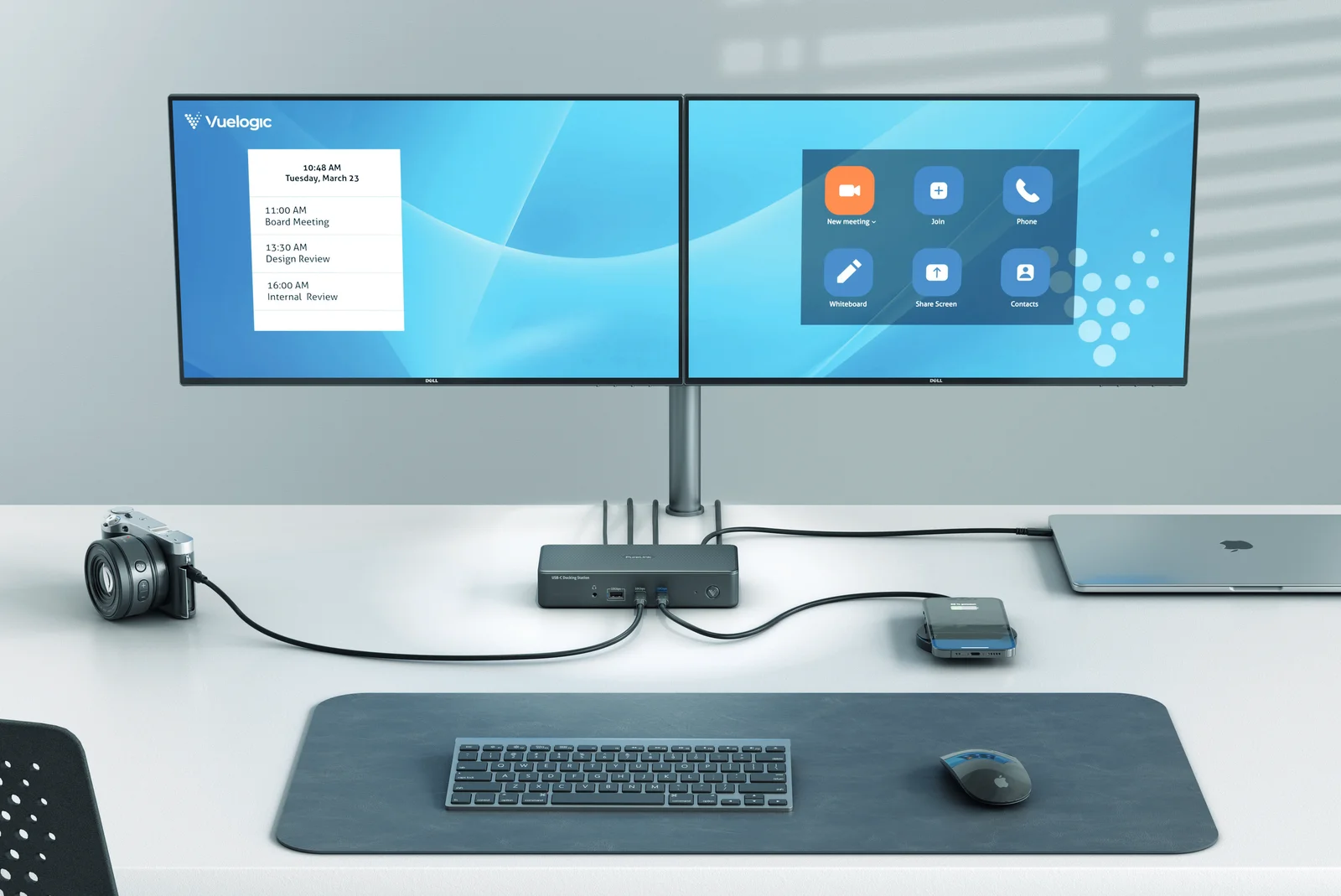
- Connect with computer Insert the USB-C cable into the USB-C upstream port on the back of the product and connect to the full-featured USB-C port of the computer.
For support and additional information scan the QR code
help.purelink.de
What´s in the box
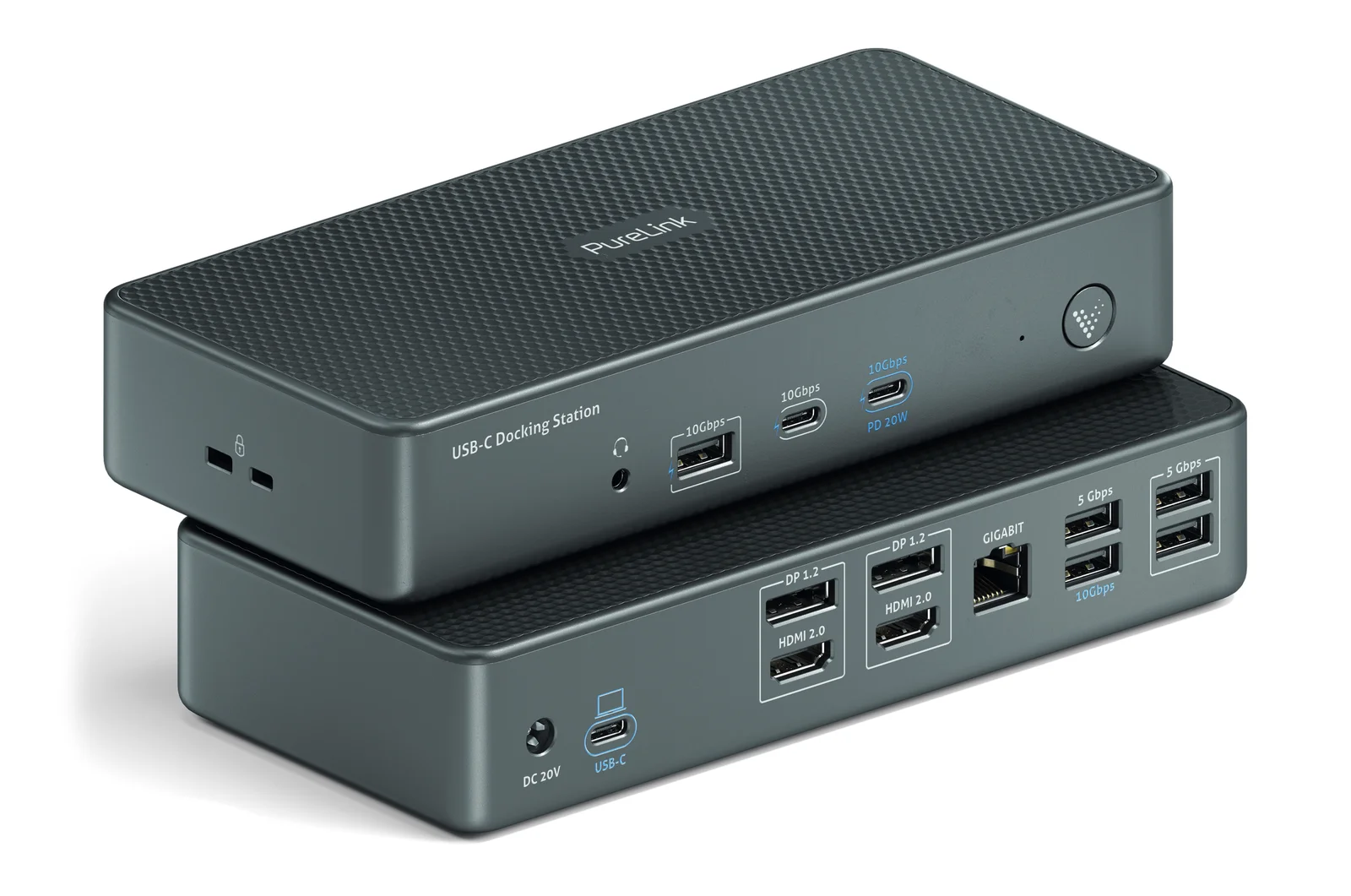
- 1x USB-C Multi-function DisplayLink Docking Station
- 1x USB-C to USB-C Cable
- 1x DC 150W power adapter
- 1x Quick Start Guide
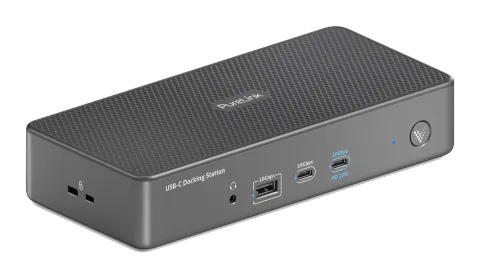
Vuelogic 14-In-1 USB-C Docking Station
- Dual Screen DisplayLink Dock
- USB-C 3.2 Gen2 with 10Gbps
- DisplayLink ready
- Dual 4K Display Support
- Up to Seven Peripheral Devices
- 100W Power Delivery
- MacOS 10.13,10.14 and 10.15 Users must enable this kernel system extension in the Security and Privacy Preferences after installing the driver. To set this up, please refer to: https://support.displaylink.com/knowledgebase
- MacOS Catalina 10.15 MacOS 10.15 requires users to allow “screen recording” in order for DisplayLink devices to work properly. To set this up, please refer to: https://support.displaylink.com/knowledgebase
Legal & Compliance
Product identification
Model: VL-D210DL – manual version 1.0
Packaging
Dispose of packaging separately by material (paper/cardboard, plastics) via the local collection systems. Keep packaging material away from children – risk of suffocation. Packaging register LUCID: DE5958616449295.