
INTRODUCTION
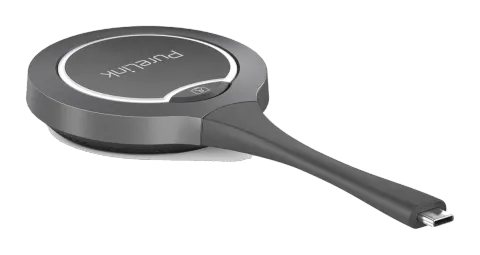
This product is a USB Type-C wireless screen transmitter dongle. It supports the sharing of contents from screen sources (e.g. laptop) wirelessly to a display device. It supports transmission of up to 4K30 video signals with audio and remote USB peripherals. The device is fully compatible with most major operation systems, such as Window 10/11, Mac OS.
GENERAL NOTES
Please read this user manual in its entirety and carefully. It forms part of the product and contains important notes for operating and storing. Please keep this document in a safe place for other users or for personal reference.
This product is intended for indoor use only. Please do not use it in any outdoor areas. Any contact with water and moisture must be avoided under all circumstances.
For product safety and compliance purposes (CE), please do not rebuild and/or modify this product. Please note that if you use the product for purposes other than those described above, the product may be damaged. In addition, improper use can cause hazards such as short circuiting, fire, electric shock, etc.
SAFETY INSTRUCTIONS
Note: Read the operating instructions carefully and especially observe the safety information. If you do not follow the safety instructions and information on proper handling in this manual, we assume no liability for any resulting personal injury or damage to property. Such cases will invalidate the warranty/guarantee.
Electrical Safety
- Ensure that the product is connected to a power source that matches the specifications provided in the user manual.
- Do not expose the product to water or moisture to prevent electrical shock or damage.
Usage
- Only use the product with the supplied accessories.
- Do not attempt to modify or replace it.
- Only use the product for the intended use case described in this user manual.
Storage
- When not in use, store the product in a cool, dry place away from direct sunlight and extreme temperatures.
Maintenance
- Regularly clean the product with a soft, dry cloth to maintain the correct function.
- Do not attempt to disassemble or repair the product yourself.
- Contact customer support for any issues.
Children and Pets
- Keep the products, the accessories and the packaging out of reach of children and pets to prevent accidental injury or damage.
Unattended Operation
- Do not leave the product unattended while it’s being used.
- Turn off/unplug the product when not in use.
Authorized Service
- Only authorized personnel should perform repairs or modifications to the product.
- Contact customer support for assistance.
Emergency Disconnect
- In case of any unusual behavior (e.g., overheating, smoke), immediately disconnect the product from the power source and contact customer support.
FEATURES
- Supports 4K 30Hz wireless video transmission
- Touch control via USB HID touchback
- Wireless conferencing with camera and audio via desktop app
- Compatible with Windows, macOS and dual-band 2.4G/5G
- Quick setup with one-click button for video/audio.
PACKAGE CONTENTS
- 1x USB Dongle
- 1x User Manual
SPECIFICATIONS
| Technical | |
|---|---|
| Max. Resolution | 4K @ 30fps |
| Connection Type | 1 x USB Type-C |
| Frequency | 5GHz (default) and 2.4GHz |
| Wireless transmission protocol | IEEE 802.11 a/b/g/n, IEEE 802.11ac |
| Authentication protocol | WPA2-PSK or IEEE 802.1X |
| Operating System | Windows 10/11, Mac OS |
| USB Port | USB Type-C Port (Supports DP Alt Mode) |
| General | |
|---|---|
| Operating Temperature | 0°C to 40°C |
| Storage Temperature | -20°C to 70°C |
| Humidity | 10% to 90%, non-condensing |
| ESD Protection | Human-body Model: ±8kV (Air-gap discharge)/±4kV (Contact discharge) |
| Input Voltage | 5V (Power over USB) |
| Power Consumption (Max.) | 3.023W |
| Product size (w x h x l) | 68.98 x 15.9 x 165.19mm |
| Product Weight | 60g (net weight) |
PANEL DESCRIPTION
| No. | Name | Description |
|---|---|---|
| 1 | USB-C Connector | Connect to PureLink Specified AV equipment for pairing, or a source device with Type-C port for screen sharing. |
| 2 | UCC Device Activation Button | When the UCC activation button is pressed, the source device wirelessly connects to the USB devices on the paired receiver, and the indicator below the button lights up green. Note: This function is only available through the PureLink Share application, which must be installed and running on the connected source laptop. |
| 3 | Present Button | After successfully pairing with the receiver, connect the dongle to a source (such as a laptop): Share screen: Press the button once. Disconnecting screen sharing: Press the button once. Freezing the screen: Double click the button during a presentation to freeze the image Resuming after a freeze: Press the button once in frozen status to exit back to sharing status. Enter full-screen mode: Hold the button for 3s to enter full-screen mode when in muti-view mode. |
| 4 | Status LED | Revolving Lights (Blue, counterclockwise): The dongle is starting / The dongle is pairing up with the receiver (connected with a receiver) / WiFi is disconnected. Solid blue: The dongle is paired up with the receiver successfully / The dongle is preparing for screen sharing (connected with a source computer) / The dongle is upgraded successfully. Solid dark blue: The dongle is screen sharing. Blinking 2 times (blue): The dongle is in the process of upgrading. Solid red: The dongle has failed to pair with the receiver (connected with a receiver) / The dongle has failed to upgrade firmware (connected with a receiver) / The Type-C port of the source doesn’t support video (connected with a source computer). |
APPLICATION
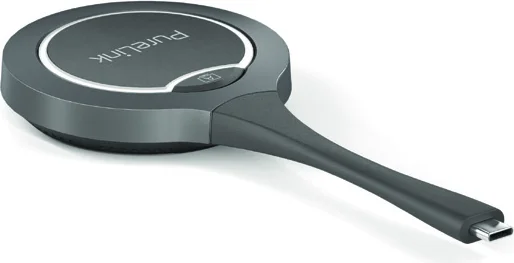
- Pair the USB dongle with the receiver Note: For more detailed operations regarding the receiver, please refer to its own user manual. a. Connect the USB dongle to the “Pairing” port of the receiver for pairing. Then “Pairing…” will appear on the display screen connected to the receiver. The dongle’s LED will be in marquee status (blue). b. Once pairing is complete, “Pairing Successful” will appear on the display screen. The dongle’s LED will be solid blue.
- Connect the Dongle to a laptop After the pairing is successful, unplug the dongle from the receiver and connect it to the USB Type-C port of a laptop, it will start running and establishing wireless connection with the receiver. The LED will be solid blue, and the dongle is ready for sharing. Note: The USB Type-C port of the laptop the dongle is connected to must support video and audio.
First Install of “PureLink Share” Application:
Windows Installation:
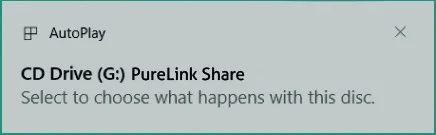
- Insert the dongle into the laptop. A pop-up will appear in the bottom right corner of the desktop. Click it, and in the next pop-up, select “Run PureLink-Share-Setup.vbs” to install the application. Note: If the pop-up doesn’t appear in the bottom right corner of the desktop, users can open the File Explorer on the laptop, navigate to the section of “My Computer” or “This PC”, and double click “CD Drive (G:) PureLink” to install the application automatically.
- The installation process will run in the background and the application will start automatically after the installation is successful. The application window appears in the lower right corner of the desktop, and after about 5 seconds the window will minimize to the task bar.
Mac OS installation:
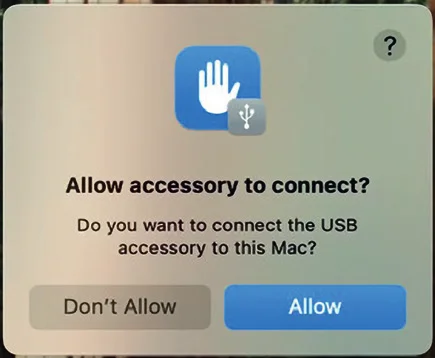
- Insert the dongle into the MacBook, and click “Allow” in the pop-up.
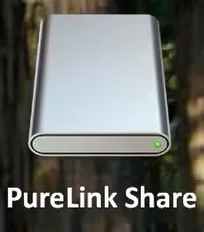
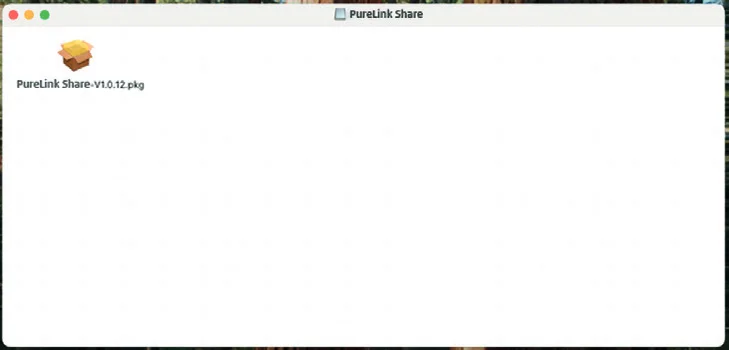
- A disk named as “PureLink” will appear on the desktop. Double-click the disk icon to open it, and double-click the software to install it according to the on-screen instructions.
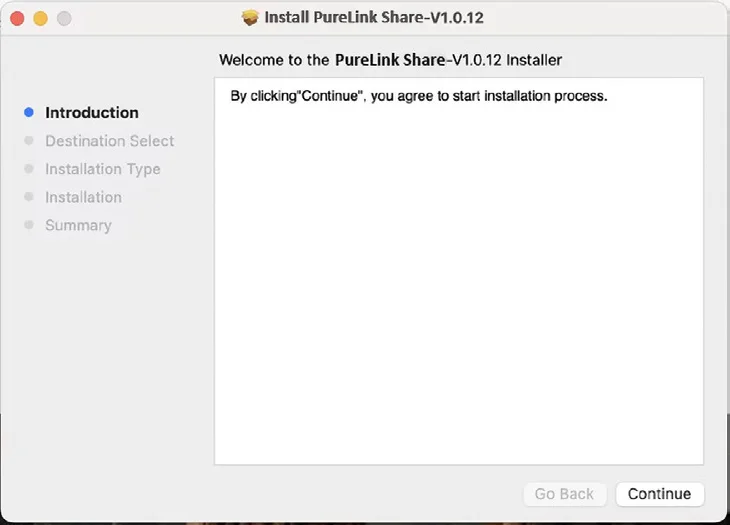
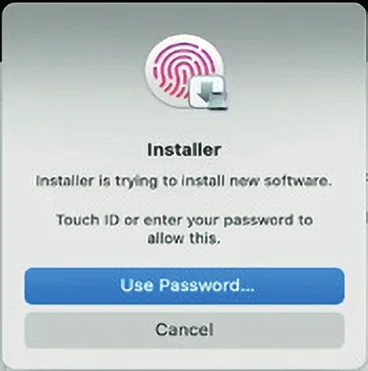
- Click “Continue” to install the application. Before starting installation process, users need to use the correct touch ID, face ID or password to enable the installation to process. For example:
Note: If the pop-up doesn’t appear in the bottom right corner of the desktop, users can open the File Explorer on the laptop, navigate to the section of “My Computer” or “This PC”, and double click “CD Drive (G:) PureLink Share” to install the application automatically.
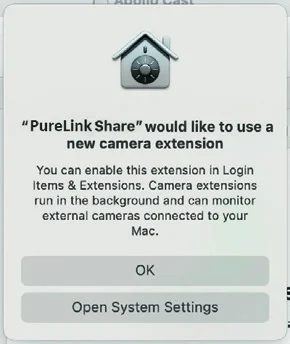
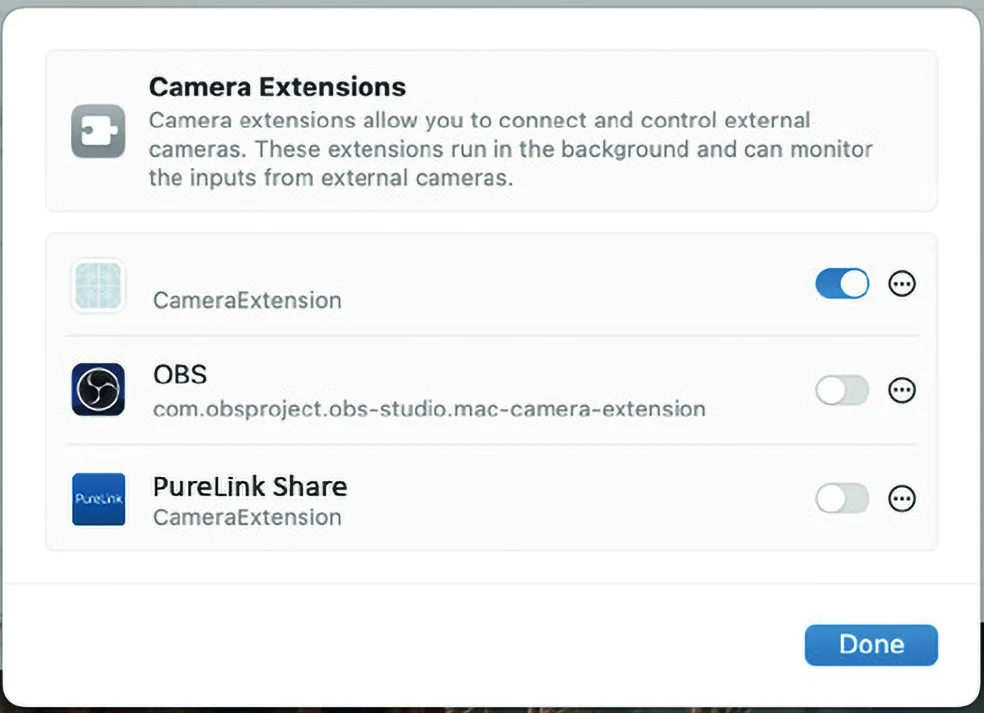
- Click “Open System Settings” to enter the following setting page: Click the button after “PureLink Share”, and input correct touch ID, face ID or password to allow the permission, and click “Done” to back the installer interface. Note: The Camera Extension permission for “PureLink Share” needs to set to enabled, otherwise the camera that the receiver is connected to can’t be used.
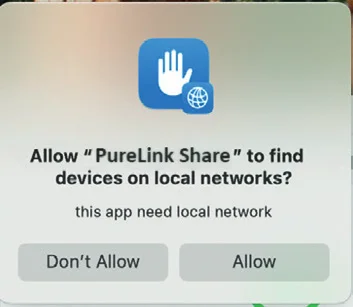
- Click “Allow” to enable the application to find devices on local network.
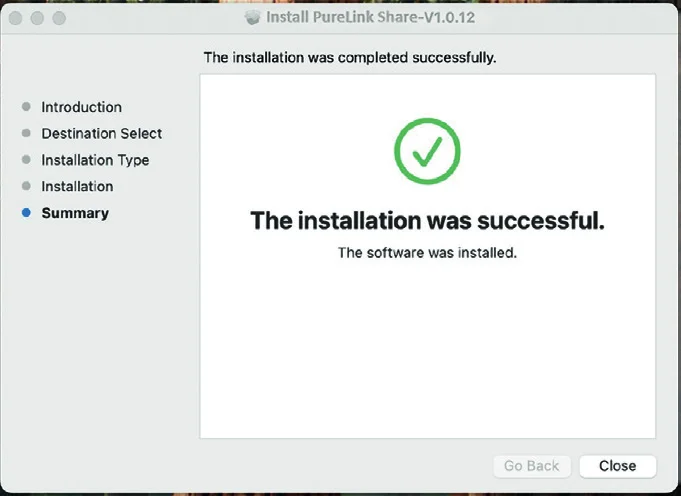
The application window appears in the lower right corner of the desktop when the installation is successful and after about 5 seconds the window will minimize to the menu bar.
Software Icon:
Note: When installing this application, the MacBook using Intel chips need to have system version 13.0 or higher, and using M series chips need to have system version 12.3 or higher.

„PureLink Share“ Application
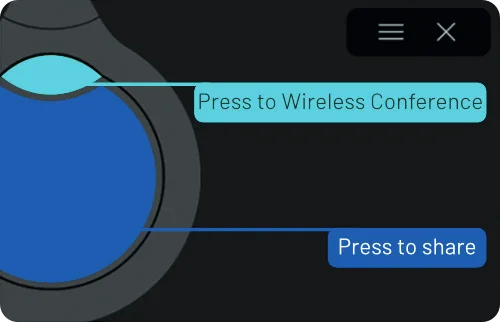
The main interface introduces the button operation of the dongle.
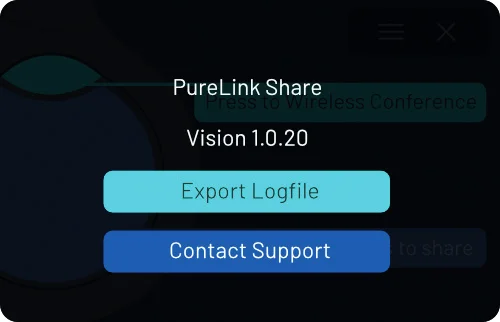
Click the icon to check the application version, export log file and contact support.
- Export Logfile: Click to export the log file to a local PC.
- Contact Support: Click to jump to the support website.
Click the button minimum the application to the task bar / menu bar.
Note: If users want to exit the application, click the right button of the mouse and select “Exit” (Windows) or “Quit” (Mac OS) to exit.
Unplug the dongle when the application is running, and then insert the dongle, the text prompts are as follows:
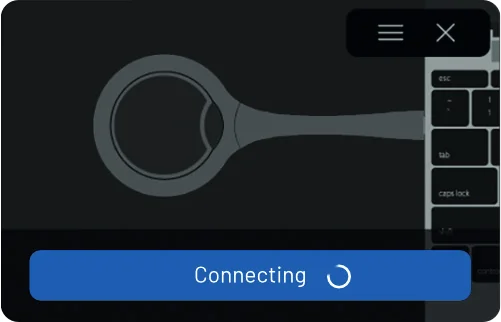
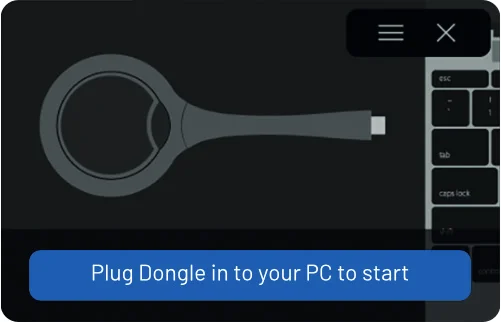
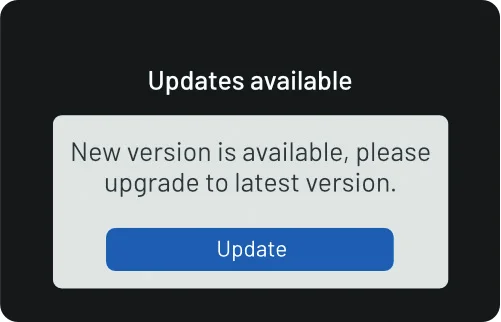
If the application installed on the laptop is not the latest version, it will prompt to update the latest version when users plug in the dongle. Click “Update” to update the application to the latest version.
If the application is installed or not, does not affect the operation of the sharing button of the dongle. Screen sharing is entirely possible without any software installation at all.
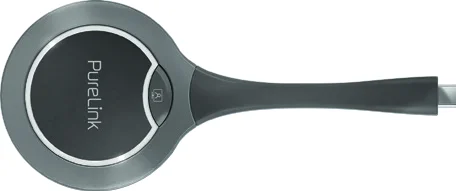
VL-MIC110 FRONT
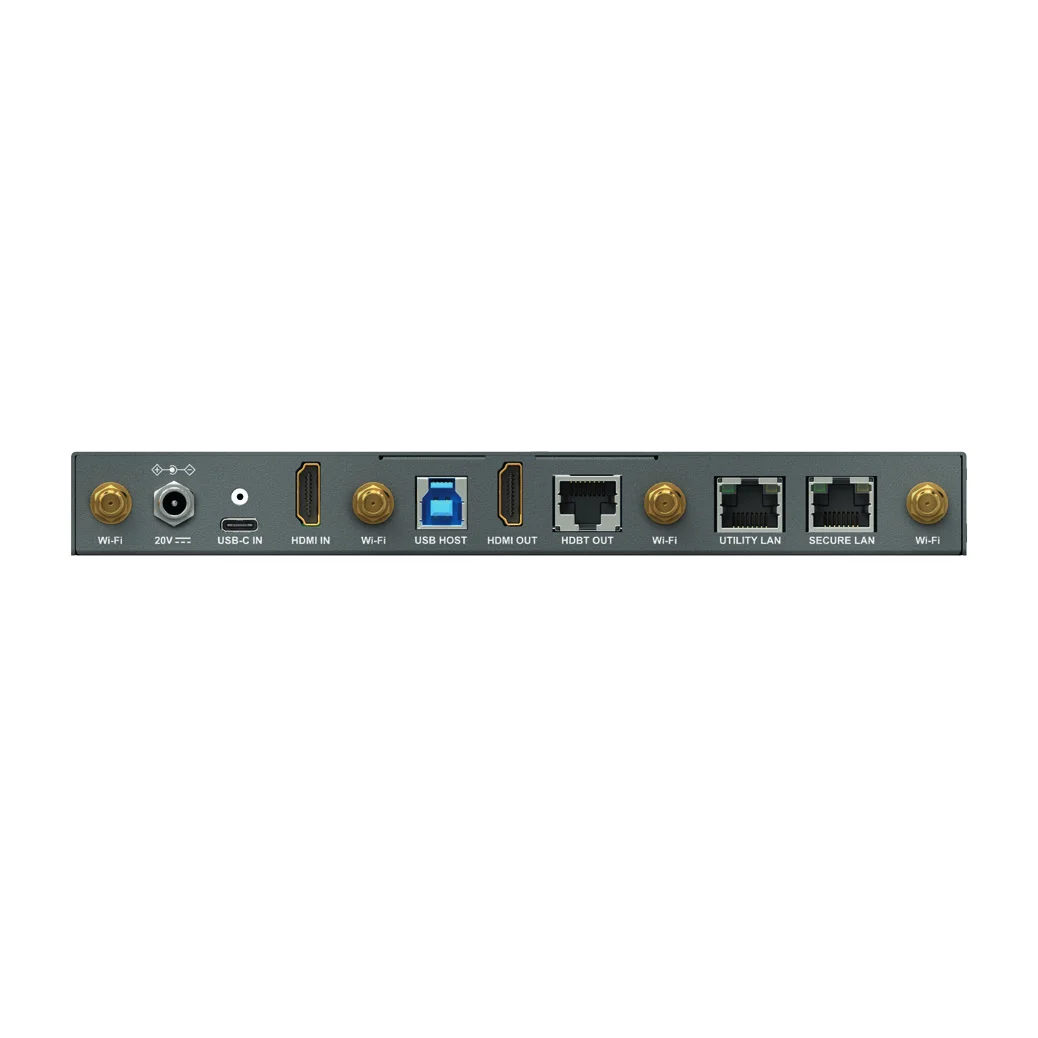
BACK
Laptop
Webcam
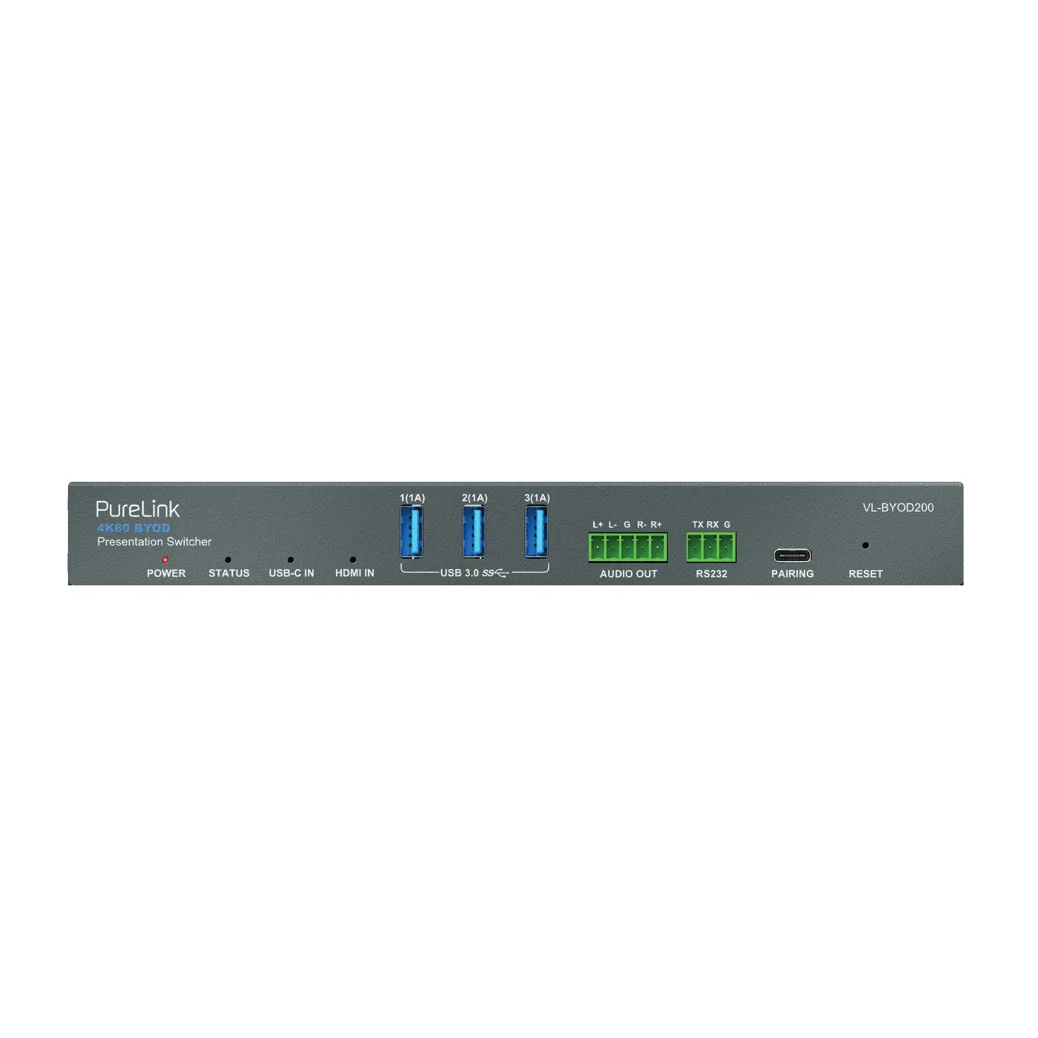
Display
Screen sharing
Press the large central button of the dongle once, the laptop’s screen will be shared to the display the receiver connected. The LED will light dark blue.
WARRANTY AND LIABILITY
If any fault or damage is detected on your product, please contact your dealer and provide your sales slip or invoice as evidence of the purchase, if necessary. Your dealer will repair the fault either on site, or send the device PureLink. Please describe the possible faults in detail – only then you can be assured that faults, occurring only rarely, will be found and repaired with certainty! Any use other than described in this users manual is not permitted.
DISCLAIMER OF LIABILITY
PureLink GmbH will not be held liable, nor provide any warranty for damage resulting from improper installation, assembly and use of the product, or failure to observe the operating instructions and/or safety instructions.
CE CONFORMITY
TRADEMARK
Product model and logo are trademarks. All other trademarks mentioned in this manual are acknowledged as the property of the trademark owners. No part of this publication may be copied or reproduced without prior written permission of their respetive owners.
PureLink GmbH hereby declares that this product is in compliance with the essential requirements and other relevant provisions of the RED Directive 2014/53/EU and the RoHS Directive 2011/65/EU amended by 2015/863 EU. PureLink GmbH hereby declares that this product is in compliance with the essential requirements of the Electromagnetic Compatibility Regulations 2016 and all other applicable UK regulations.
The EU Declaration of Conformity is available here: www.purelink.de
DISPOSAL OF DEVICE
WEEE-Reg.-Nr. DE 93847290
According to the European WEEE Directive, electrical and electronic equipment may not be disposed of with household waste. As a consumer, you are obliged to return electrical and electronic equipment free of charge at the end of its service life to the public collection points set up for this purpose or to the point of sale. Details on this are regulated by the respective national law.
The symbol on the product, the instructions for use or the packaging refers to these regulations Recycling old appliances in this way is an important contribution to the protection of our environment.
PURELINK GMBH
V1 | 2025-06
PURELINK GMBH
Von-Liebig-Str. 10
D - 48432 Rheine
Germany
www.purelink.de
WEEE-Reg.-No. DE 93 847 290
PURELINK UK LTD.
Carpenter Court, 1 Maple Road
Bramhall, Stockport
Cheshire SK7 2DH
United Kingdom
Legal & Compliance
Product identification
Model: VL-DGL200 – manual version 1.0
Packaging
Dispose of packaging separately by material (paper/cardboard, plastics) via the local collection systems. Keep packaging material away from children – risk of suffocation. Packaging register LUCID: DE5958616449295.