
Overview
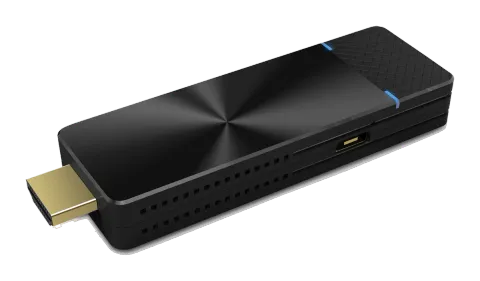
EZCast Pro Dongle II with Native Mirror Function
To provide native casting experience, EZCast Pro Dongle II supports Miracast, AirPlay, thus enabling user to do video streaming without installing any app.
Android
- Click in your setting menu and select the SSID that matches with your dongle. Please make sure your device supports Miracast protocol. Also, Cast Logo may vary from different devices.
- Once connected, user may see the mirror screen on the external display.
iOS
- Connect your iOS device to EZCast Pro Dongle II in the Wi-Fi list. Or connect your iOS device and Dongle to the same WAP (Wireless Access Point).
- Click in your menu and select the SSID that matches your dongle.
- Once connected, user may see the mirror screen on the external display.
Windows
- Open your Windows Settings Menu, then enter the Display section.
- User may find the SSID of the dongle. Once connected, user may see the mirror screen on the external display. Based on different using scenarios, you may select different methods, including Duplicate, Extend, etc.
macOS
Multi-screen Broadcasting with ProCast
User may use one laptop as casting source and mirror to other external displays. Please note that Multi-screen broadcasting is only compatible with Windows and Mac.

Caution: DO NOT open EZCast Pro App and ProCast at the same time.
Before using Multi-screen broadcasting, make sure all your dongles that connected to external displays are using the same Wi-Fi. Please note that with the rising number of connected devices, the lower bandwidth will be. For more details, please visit our website.
- Download ProCast App from our website and install it.
- Open ProCast App, and you’ll see the matching dongle SSID.
- Click and your screen will be cast to the external displays.
Note: Please make sure your laptop and the external displays are under the Same Network.
The following icons serve different purposes:
| Icon | Description |
|---|---|
| Mirror | Mirror |
| Disconnect | Disconnect |
| Silent mode | Silent mode |
| Sound-on mode | Sound-on mode |
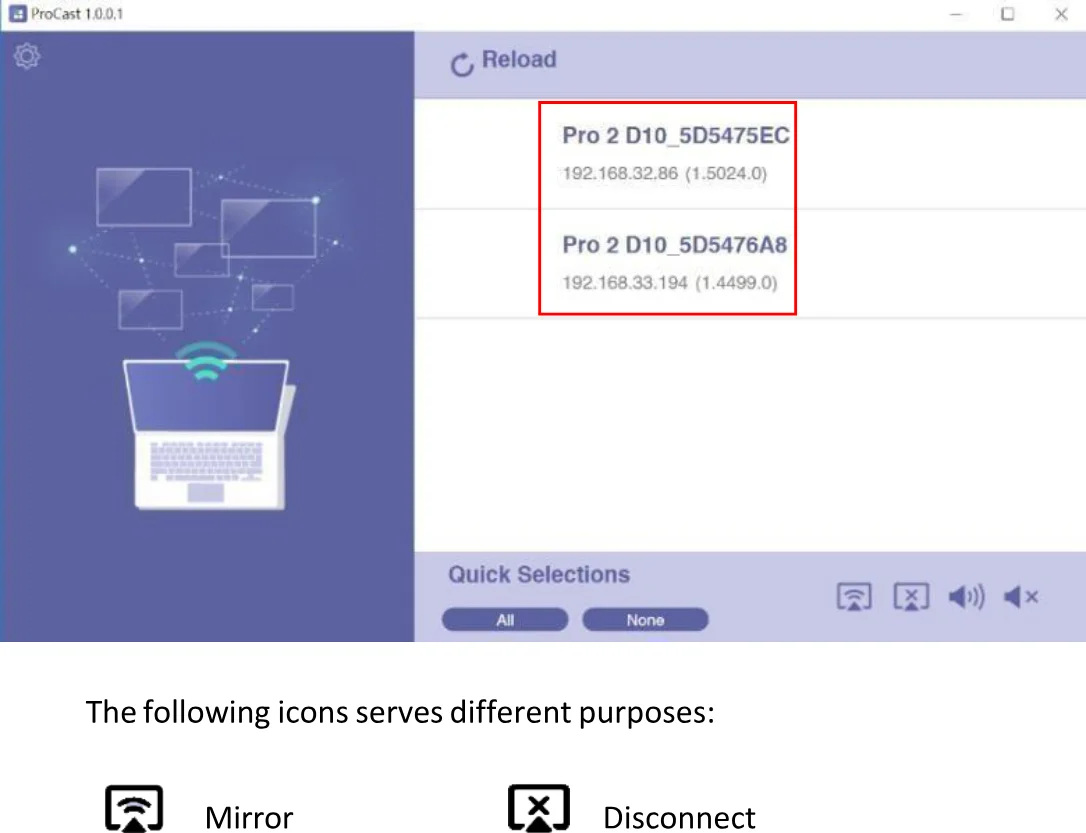
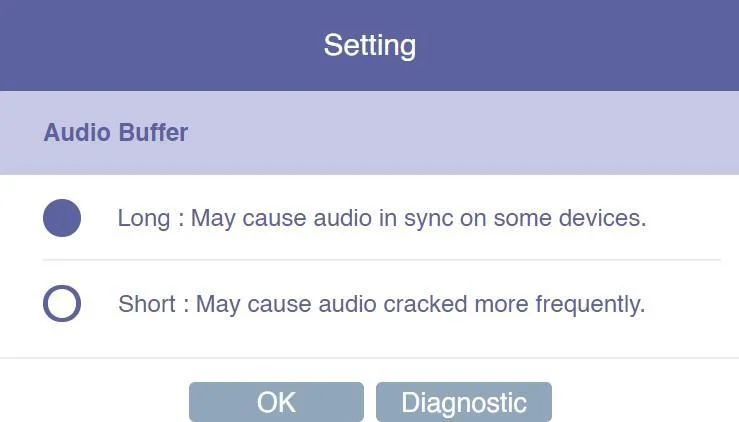
By clicking (settings), we provide users with setting option and diagnostic tool.
- Audio Buffer a. Long: With longer buffer, may provide better audio streaming experience b. Short: May cause audio cracked more frequently
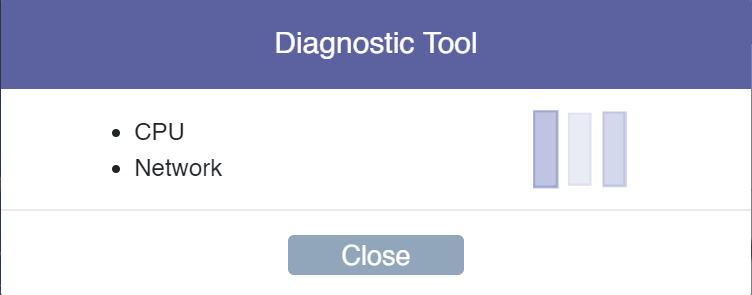
- Diagnostic Tool: Based on user’s CPU and Network performance, the Diagnostic Tool will calculate the ideal number of connected external displays. Please note that the mirror performance may change under different scenarios. For example, static presentation will perform better than 4K video streaming.
Download EZCast Pro App
We have built different versions of EZCast Pro App for multiple OS platforms. With EZCast Pro App, users may do custom configuration for their dongles, including Wi-Fi, Split Screen, etc. Please refer to the following information. As for the App function intro, we’ll elaborate on more details at the latter sections.
Android
You may download EZCast Pro App for Android from Google Play or our website.
iOS
You may download EZCast Pro App for iOS directly from App Store.
Windows
You may download EZCast Pro App for Windows from our website.
Mac
You may download EZCast Pro App for Windows from our website.
Chrome OS
You may download EZCast Pro App for Windows from our website.
EZCast Pro App Introduction
In the following section, we’ll introduce the built-in function of EZCast Pro App. Please note that some functions are limited to certain OS platform.
EZNote
With EZNote, user may view all the devices’ casting content in the output screen, then taking notes directly on their own mobile device.
EZKeep
User can review notes saved previously in EZKeep. Other than browsing note, a user can also add bookmarks, editing notes information, making comments, deleting notes, etc.
EZChannel
Gathering the most popular, latest online video at EZChannel home page, including movies, TV series, 24-hour news. At the upper right corner, the user may see the HQ/LQ button, which allows the user to alternate between High Quality (HQ) and Low Quality (LQ) video.
Photo
Once the mobile device is connected to EZCast Pro Dongle II, user can browse images that stored in their device. EZCast Pro App also supports slideshow mode, providing four different timing transition options, which includes 3, 5, 10, 30 sec / per photo.
Camera
With Camera function, EZCast Pro Dongle II provides Live Casting service by transmitting Live image from a user’s device to external display.
Music
Streaming audio to the output device. Please note that when streaming music to external display, EZCast Pro Dongle II only accepts one device as an audio source.
Video
Casting video content to the external display. Please note that when using the Video function during the Split Screen mode, all the connected devices will be disconnected from network display mode.
Document (iOS only)
Reviewing document in EZCast Pro App, supporting mainstream document formats, including Microsoft’s Word, Excel, PowerPoint, and Apple’s Pages, Numbers, and Keynotes.
Web
User can browse Web content in EZCast Pro App, without using 3rd party browser. To provide better browsing experience, EZCast Pro App already integrated web portals like Google, Facebook, Yahoo, YouTube, etc. Users who already owned EZCast account, may login first and browse bookmarks saved before.
Cloud Storage
EZCast Pro Dongle II has integrated mainstream cloud storage service, such as Dropbox, Google Drive, etc. With this function, user may browse, edit, delete or manage their cloud storage without leaving EZCast Pro App.
AirView
When turning on AirView mode, users may see all the external display on their own device. This function also allows the user to choose the preferred refresh rate. Please note that user may choose the preferred refresh rate in the Setting menu.
Setting
Scan 5G SSID and Connect
Connecting EZCast Pro Dongle II to preferred networking by selecting SSID and entering Wi-Fi password. After setting up, the user may utilize wireless function such as online video streaming, web browsing, etc.
Language
Supporting mainstream languages such as English, French, German, Chinese, etc.
Device Name
User may set new SSID for EZCast Pro Dongle II, deciding whether to show SSID at the standby screen.
Please note that before turning off SSID function, making sure that EZCast Pro Dongle II is connected to Wi-Fi router, otherwise would cause EZCast Pro Dongle II to lose wireless connectivity. User will have to do hard reset for EZCast Pro Dongle II to regain wireless connectivity.
Resolution
EZCast Pro Dongle II will select the proper output resolution for the user automatically. This function also supports manual selection.
EZAir Mode
EZAir mode is specifically designed for the iOS device, including iPhone and iPad, which enables users to utilize AirPlay, native mirroring function provided by Apple.
User may choose "Mirror only" or "Screen Mirror+Video Streaming". The former can only mirror the screen content, while the latter can cast both screen and audio content to external display.
AirView
When turning on AirView mode, with users’ own device, you may see all the casting content captured from external display. This function also enables the user to choose the preferred refresh rate.
Castcode Control
When turning on, the user may mirror the screen by entering castcode displayed on the standby screen.
Max Connections
Host may decide the number of devices that allowed to connect to EZCast Pro Dongle II. The default setting is 8 users.
Please note that with the rising number of connected devices, the lower network bandwidth would have for each user.
Advanced Setting
Link Status
With this option, the attendees may see all the device information that connected to EZCast Pro Dongle II, including detailed information like device name, IP address, and Role.
Conference Control
This function is only for Host user. With Host authorization, a user can assign each device with their own casting area, disconnecting all device, or assigning Host authorization to others.
Device Management
a. Language
Supporting mainstream languages such as English, French, German, Chinese, etc.
b. Device Name
User may set new SSID for EZCast Pro Dongle II. If the user doesn't want to show SSID at the standby screen, it could also be deactivated.
Please note that before turning off SSID function, making sure that EZCast Pro Dongle II is connected to Wi-Fi router, otherwise would cause EZCast Pro Dongle II to lose wireless connectivity. User will have to do hard reset for EZCast Pro Dongle II to regain wireless connectivity.
c. Resolution
EZCast Pro Dongle II will select proper output resolution for the user automatically. This function also supports manual selection.
d. EZAir Mode
EZAir mode is specifically designed for the iOS device, including iPhone and iPad, which enables users to utilize AirPlay, native mirroring function provided by Apple.
User may choose "Mirror only" or "Screen Mirror+Video Streaming". The former can only mirror the screen content, while the latter can cast both screen and audio content to external display.
e. AirView
When turning on AirView mode, with users’ own device, you may see all the casting content captured from external display. This function also enables the user to choose the preferred refresh rate.
f. EZNote
Through EZNote, a user can take note directly on the casting screen shot provided by EZCast Pro Dongle II.
g. Castcode Control
When turning on, the user may mirror the screen by entering castcode displayed on the standby screen.
h. Max Connections
Host may decide the number of devices that allowed to connect to EZCast Pro Dongle II. The default setting is 8 users.
Please note that with the rising number of connected devices, the lower network bandwidth would have for each user.
Network Management
a. Scan 5G SSID and Connect
Connecting EZCast Pro Dongle II to preferred networking by selecting SSID and entering Wi-Fi password. After setting up, the user may utilize wireless function such as online video streaming, web browsing, etc.
b. WiFi IP Setting
With this function, EZCast Pro Dongle II will set up a default IP address, Netmask. For an advanced setting, the user may manually configure the IP address, Gateway, Netmask, and DNS for EZCast Pro Dongle II.
c. WiFi Password
Setting Wi-Fi password for EZCast Pro Dongle II. A user may decide whether to hide the Wi-Fi password from the standby screen.
d. WiFi Channel
User may configure WiFi Channel manually, such as Country, Channel, and Bandwidth. Please note that user won't be able to switch WiFi Channel when EZCast Pro Dongle II is connected with an external router.
Admin Setting
Admin Setting is built for advanced users like IT admins, MIS engineers. In this section, premium users are allowed to provide Digital certificate for EZCast Pro Dongle II, setting SNMP for mass devices configuration deployment, updating EZCast Pro Dongle II through OTA Server, etc.
a. Admin Password
Setting New Admin Password for EZCast Pro Dongle II.
b. WiFi Enterprise
Wi-Fi Enterprise function allows user uploading Digital certificate.
d. Internet Access Control
EZCast Pro Dongle II provide three options for Internet Access control.
- All allowed: Any device can access to Internet through EZCast Pro Dongle II.
- Casting users allowed: Device that casting through EZCast Pro Dongle II is allowed to access to the Internet.
- All denied: None of the devices is allowed to access to the internet through EZCast Pro Dongle II.
e. SNMP
IT admin may apply the same configuration to many EZCast Pro Dongle II in once, hence enriching IT management productivity.
f. My Screen
Allow the user to choose wallpaper based on their preference. Please note that the updated file must be JPEG format that smaller than 3MB, fitting in 1920x1080.
g. OTA URL
IT admin may facilitate OTA URL function for deploying a new firmware version to many devices at once.
h. Connection
EZCast Pro Dongle II provides three different ways allowing a device to build the connection with EZCast Pro Dongle II.
- Via Router Allowed: Device may connect to EZCast Pro through Router.
- Direct Link Only: Device can only connect to EZCast Pro Dongle II through Direct Link.
- Via Router Only: Device can only connect to EZCast Pro Dongle II through Router.
i. Upgrade
Upgrading to latest firmware through this function. To utilize the latest function provided by EZCast, please make sure your firmware version is up to date.
j. Reset to default
Resetting EZCast Pro Dongle II to factory default. Please note that once clicking OK, all your configuration will be reset.
Reboot
Rebooting EZCast Pro Dongle II for troubleshooting.
About
Listing detailed information about EZCast Pro Dongle II, including SSID, Firmware version, Internet IP address, MAC address, etc.
Split Screen Mode
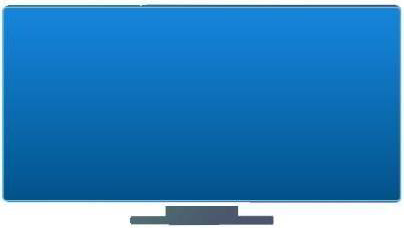
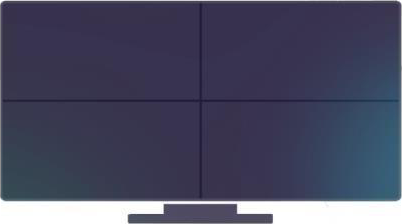
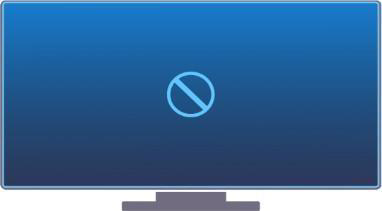
Based on the numbers of connected devices, host user may divide the external display into one-half, one-quarter.
- Null
- One-Half
- One-Quarter
- Full

Mirror
User may also cast with Mirror function. Please note that that under Mirror mode, video is projected to external display, while audio coming out from your mobile device.
Privacy Setting
User may set access configuration for your App, including Photos, Camera, Cellular Data, Notification, etc. As for data collecting function like Google Analytics for App, Google Analytics for Dongle, user may decide whether to turn on or not.
Legal & Compliance
Product identification
Model: EZ-PD10 – manual version 1.0
Warranty and liability
The manufacturer grants the full statutory warranty on all new devices. As the manufacturer has no influence on installation, the warranty only applies to the product itself. If you detect a fault or damage, please contact your dealer and provide your sales slip or invoice as proof of purchase.
The manufacturer is not liable for damage to persons or property caused by improper installation, operation or maintenance not described in this manual. Do not alter or modify the product or its accessories. Any use other than described in this manual is not permitted and voids warranty and guarantee.
Trademarks and disclaimer
Product model and logo are trademarks. All other company and product names mentioned are trademarks of their respective owners. All rights reserved. No part of this publication may be copied or reproduced without prior written permission. We reserve the right to make changes to the device, packaging or manual and accept no liability for misprints.
Disposal of electrical and electronic equipment
WEEE reg. no.: DE 93847290
The crossed-out wheelie bin symbol on the product, packaging or in this manual means that electrical and electronic equipment must not be disposed of with household waste at the end of its life. Hand in old devices free of charge at a public collection point or return them to a distributor obliged to take them back. Remove batteries and lamps that can be removed without destroying the device before handing it in, and delete any personal data stored on the device. Details are regulated by national law. By returning old devices you help protect the environment.
Packaging
Dispose of packaging separately by material (paper/cardboard, plastics) via the local collection systems. Keep packaging material away from children – risk of suffocation. Packaging register LUCID: DE5958616449295.