
Operating Environment
Temperature : 32F ~ 104F (0℃~ 40℃)
Humidity : 10% ~ 80%
Altitude : 3,000m Max.
Transit Environment
Temperature : -13F ~ 140F (-25℃~ 60℃)
Humidity : 5% ~ 95%
Altitude : 15,000m Max.
Storage Environment
Temperature : -4F ~ -140F (-20℃~ 60℃)
Humidity : 5% ~ 95%
Altitude : 3,000m Max.
Reliability
MTBF: 90% at over 50,000 hours aging test
In compliance with LCD Monitor reliability test standard
Auto-switching
Automatic input switching by signal detection
ARC – Audio Return Channel
Allows ARC-enabled TVs to transmit audio back to an AV receiver
Easy control methods
- Manual toggle button
- IR remote
- RS232C
- Auto switching by input signal detection
DVI and Displayport support via HDMI ports with adapters (sold separately)
Compact and Robust Module Design
Installation and Connection Instructions
- Connect your video source’s HDMI output port to the HDMI switch’s HDMI input port using standard HDMI cables (not included). Make sure all your HDMI sources and the display is turned off before connecting the cables.
- Connect your HDMI display’s HDMI input port to HDMI switch’s HDMI output port. Make sure your HDMI display is turned off before connecting the cables.
- Plug the 5V power supply into the switch’s power input port.
- Plug the 5V wall mount power supply into the wall outlet.
- Turn on your display.
- Turn on your video sources.
- Use your remote control unit to switch channels. Or use the select button on the front panel of the switch to change channels.
UHDS-41R Specification
Front Panel
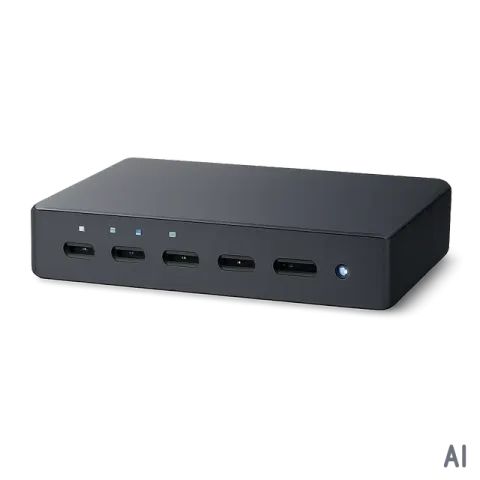
- ① Input switching status LED indicator

- ② Input Select button
- - Press and hold for two (2) seconds to select between auto switching mode and manual switching mode
- When it’s on manual switching mode, press to switch inputs
- ③ EDID mode status
- - Auto: communicate EDID from the display that is connected on the output
- 2 CH : Video EDID from the display connected the output + 2 Ch audio
- 5.1 CH: Video EDID from the display connected the output + 5.1 Ch audio
- 7.1 CH: Video EDID from the display connected the output + 7.1 Ch audio
- ④ EDID select button
- - Press to select between EDID mode
- ⑤ ARC status LED
- ⑥ ARC function on/off button
Rear Panel
- ① HDMI output

- ②③④⑤ HDMI inputs
- ⑥ Audio output (De-embedding)
- ⑦ RS232 port
- ⑧ IR extension port
- ⑨ DC 5V input port
- IR remote
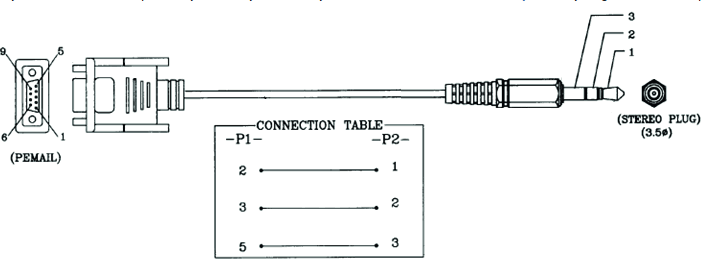
- RS232
Communication Setting
Baud rate: 19200
Data bits: 8
Parity : None
Stop bits : 1
Flow control : None
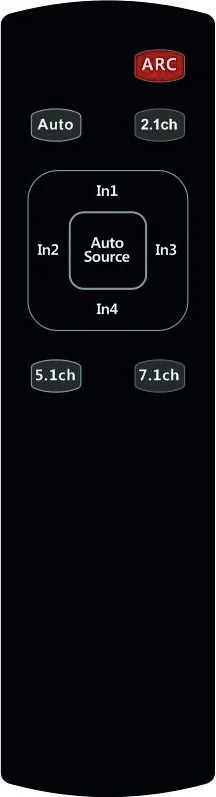
- ARC: Press to enable/disable ARC function
- Auto/2.1ch/5.1ch/7.1ch: Press these buttons to select EDID mode
- Auto Source: Press to select between auto switching mode and manual switching mode
- In1/In2/In3/In4: Press to select inputs
Cable pinout
Command protocols
Command Protocols
| Command | Feedback |
|---|---|
| Input switching command | |
| Input 1 | IN1! OK |
| Input 2 | IN2! OK |
| Input 3 | IN3! OK |
| Input 4 | IN4! OK |
| Input Auto switching | |
| On | ONAUTO! OK |
| Off | OFFAUTO! OK |
| Audio EDID switch | |
| Audio auto | A1! OK |
| Stereo Audio 2.0 | A2! OK |
| Dolby/DTS 5.1 | A3! OK |
| HD Audio 7.1 | A4! OK |
| ARC | |
| On | ONARC! OK |
| Off | OFFARC! OK |
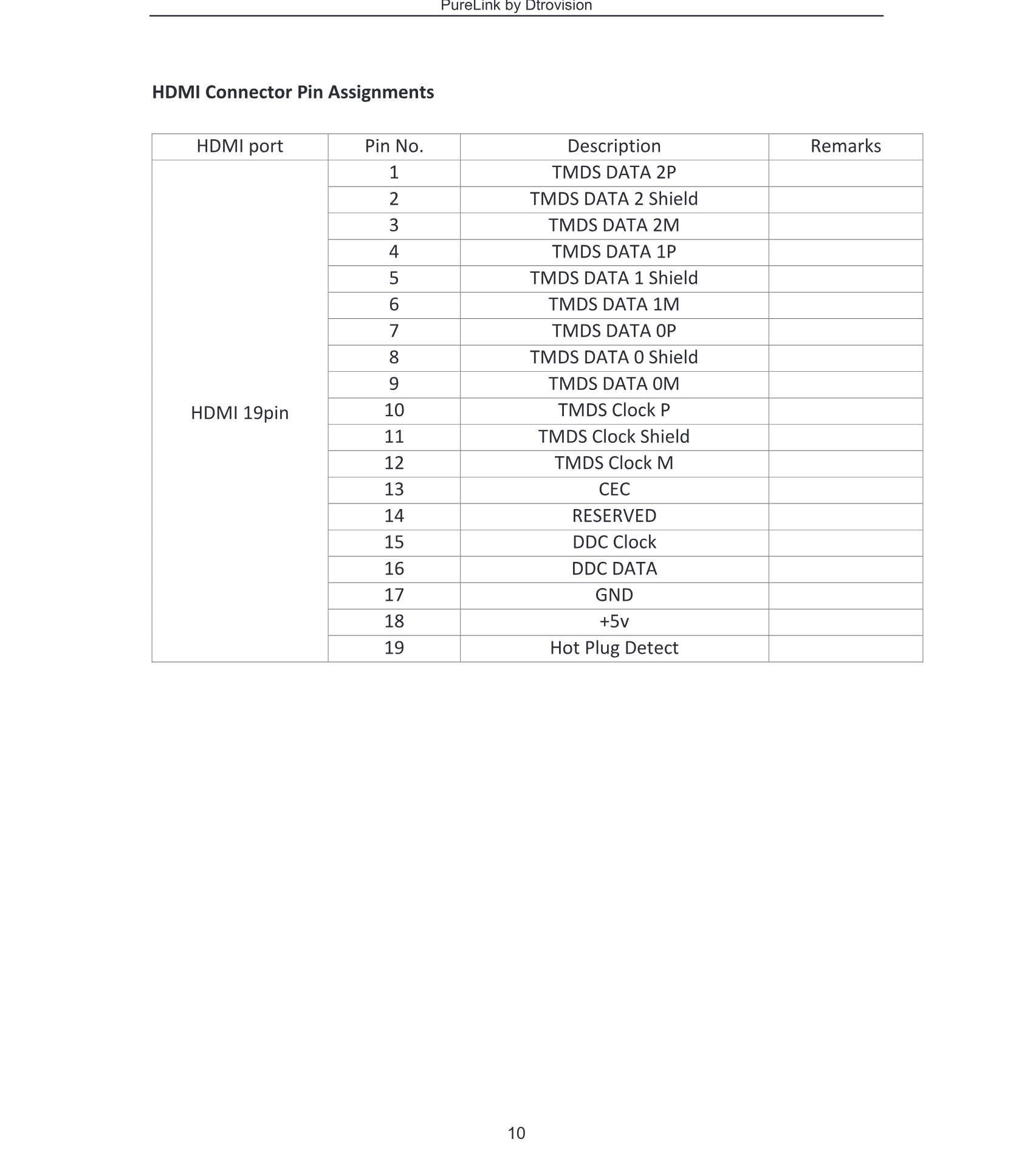
Legal & Compliance
Product identification
Model: PRO-UHDS-41R – manual version 1.0
Trademarks and disclaimer
Product model and logo are trademarks. All other company and product names mentioned are trademarks of their respective owners. All rights reserved. No part of this publication may be copied or reproduced without prior written permission. We reserve the right to make changes to the device, packaging or manual and accept no liability for misprints.
Disposal of electrical and electronic equipment
WEEE reg. no.: DE 93847290
The crossed-out wheelie bin symbol on the product, packaging or in this manual means that electrical and electronic equipment must not be disposed of with household waste at the end of its life. Hand in old devices free of charge at a public collection point or return them to a distributor obliged to take them back. Remove batteries and lamps that can be removed without destroying the device before handing it in, and delete any personal data stored on the device. Details are regulated by national law. By returning old devices you help protect the environment.
Packaging
Dispose of packaging separately by material (paper/cardboard, plastics) via the local collection systems. Keep packaging material away from children – risk of suffocation. Packaging register LUCID: DE5958616449295.