
Preface
Read this user manual carefully before using this product. Pictures shown in this manual are for reference only. Different model layouts and specifications are subject to the physical product.
This manual is for operation instructions only, not for any maintenance usage.
In the constant effort to improve our product, we reserve the right to make changes in functions or parameters without prior notice or obligation.
Trademarks
Product model and logo are trademarks. Any other trademarks mentioned in this manual are acknowledged as the properties of the trademark owner. No part of this publication may be copied or reproduced without the prior written consent.
FCC Statement
REACH, ROHS
EMC / LVD
PureLink GmbH hereby declares that this product PureTools PT-C-HDM complies with Directives 2014/30/EU and 2014/35/EU. The full text of the EU Declaration of Conformity is available at the following Internet address: http://www.purelink.de/ce/4251364735787_CE.pdf
SAFETY PRECAUTIONS
To ensure the best from the product, please read all instructions carefully before using the device. Save this manual for further reference.
- Unpack the equipment carefully and save the original box and packing material for possible future shipment
- Follow basic safety precautions to reduce the risk of fire, electrical shock and injury to persons.
- Do not dismantle the housing or modify the module. It may result in electrical shock or burn.
- Using supplies or parts not meeting the products’ specifications may cause damage, deterioration or malfunction.
- Refer all servicing to qualified service personnel.
- To prevent fire or shock hazard, do not expose the unit to rain, moisture or install this product near water.
- Do not put any heavy items on the extension cable in case of extrusion.
- Do not remove the housing of the device as opening or removing housing may expose you to dangerous voltage or other hazards.
- Install the device in a place with fine ventilation to avoid damage caused by overheat.
- Keep the module away from liquids.
- Spillage into the housing may result in fire, electrical shock, or equipment damage. If an object or liquid falls or spills on to the housing, unplug the module immediately.
- Do not twist or pull by force ends of the optical cable. It can cause malfunction.
- Do not use liquid or aerosol cleaners to clean this unit. Always unplug the power to the device before cleaning.
- Unplug the power cord when left unused for a long period of time.
- Information on disposal for scrapped devices: do not burn or mix with general household waste, please treat them as normal electrical wastes.
Product Introduction
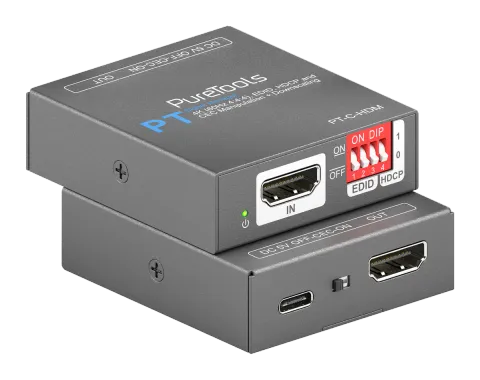
The PT-C-HDM is a 18Gbps HDMI manager with EDID, HDCP and CEC management functions. It supports up to 4K 60Hz 4:4:4 and HDCP2.2. The product is powered directly from the HDMI port or via USB-C and supports auto-downscaling form 4K to 1080p.
Feature
- 18Gps HDMI 2.0 - 4K 60Hz 4:4:4 HDCP2.2
- Supports EDID and HDCP management
- CEC on/off switch
- Auto-downscaling form 4K to 1080p
- Powered via HDMI or USB-C
Package
- 1x PT-C-HDM
- 1x User Manual
Specification
Video Input
Input: 1x HDMI 2.0
Input Connector: 1x Female type-A HDMI
HDMI Input Resolution: Up to 4K 60Hz 4:4:4
Video Output
Output: 1x HDMI 2.0
Output Connector: 1x Female type-A HDMI
HDMI Output Resolution: Up to 4K 60Hz 4:4:4
General
Bandwidth: 18Gbps
Power Supply: 5V 1A
Power Consumption: 2.4W(MAX)
Dimension (WxHxD): 54x18x60mm
Net Weight: 85g
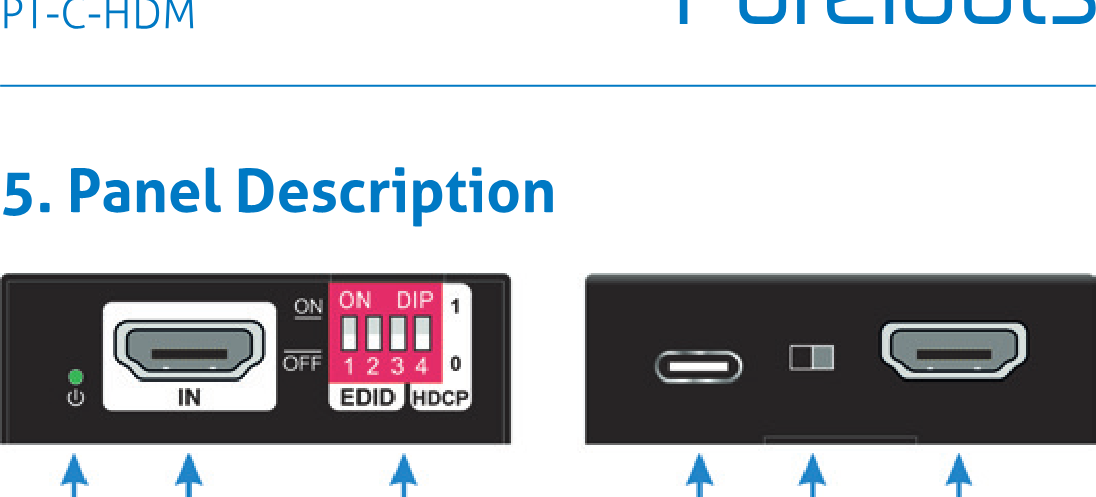
Panel Description
Front and rear view of panel with input/output ports and switches
1 Power LED: The LED indicates green when power is on.
2 HDMI IN: HDMI2.0 input, connect to source.
3 DIP Switch: 4-pin dip switch for EDID and HDCP management.
4 USB-C: USB-C is used to power the device, upload EDID's and firmware upgrade.
5 CEC Switch: Turn on/off the CEC.
6 HDMI OUT: HDMI 2.0 output, connect to display.
System Connection
Control:
HDMI:
Update:
System Connection diagram with HDMI, control, and update lines.
EDID Update
EDID Management
HDCP Management
Projector
Display
TV
Camera
Laptop
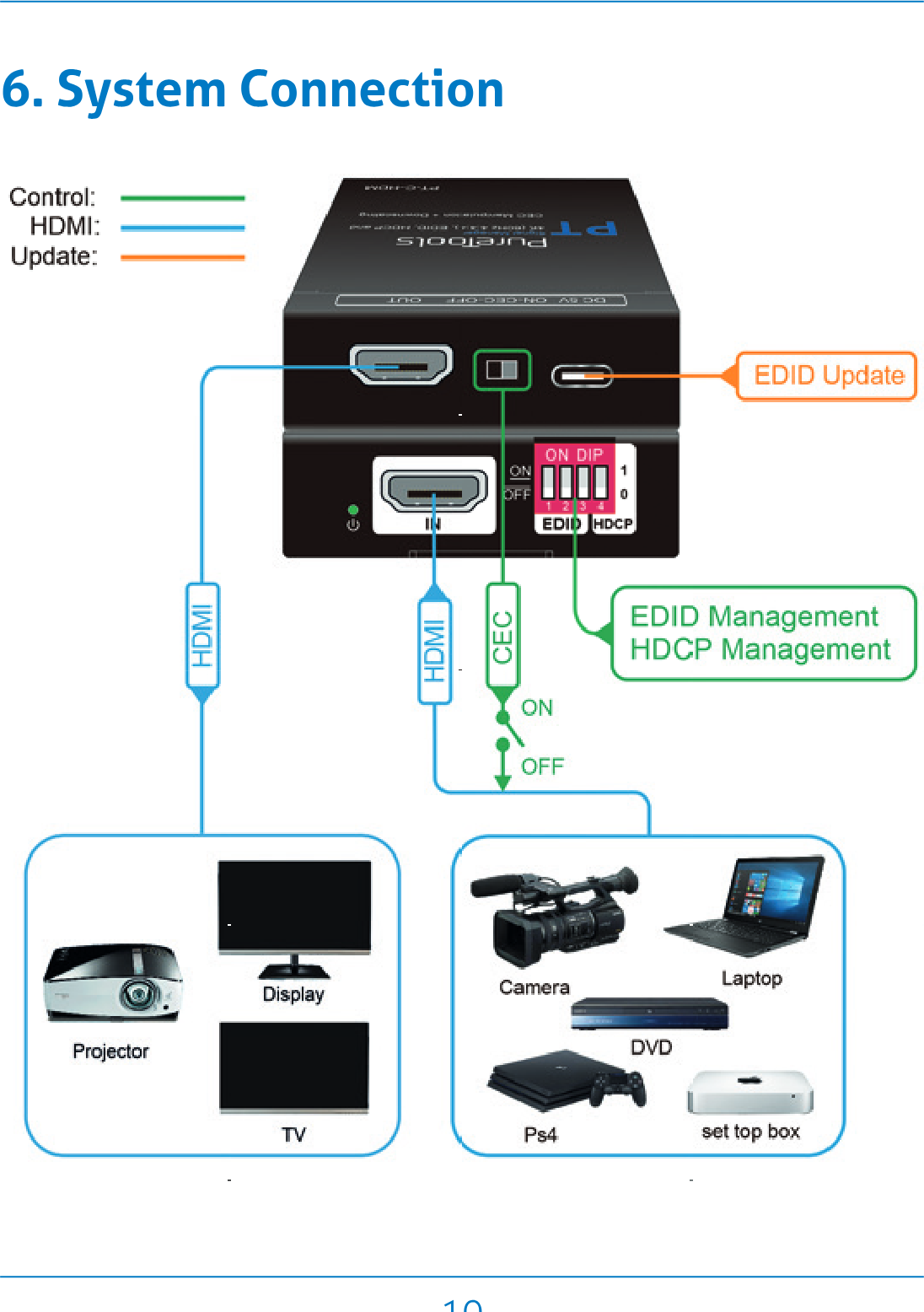
DVD
Ps4
set top box
EDID&HDCP management
Predefined EDID Setting
| Switch Status | Video Resolution | Audio Format |
|---|---|---|
| 000 | Obtain the display EDID | |
| 001 | 1080p | LPCM |
| 010 | 1080p | DTS/Dolby |
| 011 | 3840 2160@30Hz HDR | LPCM |
| 100 | 3840 2160@30Hz HDR | DTS/Dolby |
| 101 | 3840 2160@60Hz HDR | LPCM |
| 110 | 3840 2160@60Hz HDR | DTS/Dolby |
| 111 | user defined EDID |
User Defined EDID Setting
- Rename the user defined EDID according the following format: 0803C000.DAT
- Connect the machine to the PC with USB cable, the PC will automatically detect a U-disk named of "BOOTDISK".
- Copy the EDID file into the U-disk, and then open the U-disk. If there is a SUCCESS.TXT file, it means that the EDID upload is successful.
- Remove the USB cable, connect the adapter to power on the machine.
Firmware Upgrade
HDCP management
| Status | HDCP Function |
|---|---|
| 1 | Communicate to source that no HDCP is supported by the device, then the source will send the content without HDCP if the signal format allows it. |
| 0 | Switch off HDCP management |
- Rename the upgrade file according the following format: 08009000.APP
- Disconnect the HDMI and connect the PT-C-HDM to the PC with USB cable, the PC will detect a U-disk named of “BOOTDISK”.
- Copy the file into the U-disk, and then open the U-disk. If there is a SUCCESS.TXT file, it means upgrade is successful, and if there is an UNKNOW.TXT file, it means fail.
Supported Resolutions
- 640x480p@ 60, 67, 72, 75Hz
- 720x400p@ 70Hz
- 720x480p@ 60Hz
- 720x480i@ 60Hz
- 720x576p@ 50Hz
- 720x576i@ 60Hz
- 800x600p@ 56, 60, 72, 75Hz
- 832x624p@ 75Hz
- 1024x768p@ 60, 70, 75Hz
- 1280x1024p@ 75Hz
- 1280x720p@ 50Hz
- 1152x870p@ 75Hz
- 1152x864p@ 75Hz
- 1280x1024p@ 60Hz
- 1280x960p@ 60Hz
- 1440x900p@ 60Hz
- 1600x1200p@ 60Hz
- 1680x1050p@ 60Hz
- 1920x1080p@ 50, 60Hz
After-Sales Service
If there appear some problems when running the product, please check and deal with the problems referring to this user manual. Any transport costs are borne by the users during the warranty.
1) Product Limited Warranty: This product will be free from defects in materials and workmanship for three years (The purchase invoice shall prevail).
Proof of purchase in the form of a bill of sale or receipted invoice which is evidence that the unit is within the Warranty period must be presented to obtain warranty service.
What the warranty does not cover (servicing available for a fee):
- Warranty expiration.
- Factory applied serial number has been altered or removed from the product.
- Damage, deterioration or malfunction caused by:
- Normal wear and tear.
- Use of supplies or parts not meeting our specifications.
- No certificate or invoice as the proof of warranty.
- The product model showed on the warranty card does not match with the model of the product for repairing or had been altered.
- Damage caused by force majeure.
- Servicing not authorized by distributor.
- Any other causes which do not relate to a product defect.
- Delivery, installation or labor charges for installation or setup of the product.
Technical Support:
For any questions or problems, contact your distributor or reseller and tell them the respective product name and version, the detailed failure situation as well as the formation of the cases.
Asking for Assistance
Technical Support:
Phone: +49 5971 800299 - 0
Fax: +49 5971 800299 - 99
Technical Support Hours:
8:30 AM to 5:00 PM Monday thru Thursday
8:30 AM to 4:00 PM Friday
Write To:
PureLink GmbH
Von-Liebig-Straße 10
D - 48432 Rheine
www.purelink.de
info@purelink.de
Legal & Compliance
Product identification
Model: PT-C-HDM – manual version 1.0
EU conformity
PureLink GmbH hereby declares that this product PureTools PT-C-HDM complies with Directives 2014/30/EU and 2014/35/EU.
| Directive / Regulation |
|---|
| 2014/30/EU |
| 2014/35/EU |
The full text of the EU Declaration of Conformity is available at: http://www.purelink.de/ce/4251364735787_CE.pdf
Disposal of electrical and electronic equipment
WEEE reg. no.: DE 93847290
The crossed-out wheelie bin symbol on the product, packaging or in this manual means that electrical and electronic equipment must not be disposed of with household waste at the end of its life. Hand in old devices free of charge at a public collection point or return them to a distributor obliged to take them back. Remove batteries and lamps that can be removed without destroying the device before handing it in, and delete any personal data stored on the device. Details are regulated by national law. By returning old devices you help protect the environment.
Packaging
Dispose of packaging separately by material (paper/cardboard, plastics) via the local collection systems. Keep packaging material away from children – risk of suffocation. Packaging register LUCID: DE5958616449295.