
Safety Precautions
- Unpack the equipment carefully and save the original box and packing material for possible future shipment.
- Follow basic safety precautions to reduce the risk of fire, electrical shock and injury to persons.
- Do not dismantle the housing or modify the module. It may result in electrical shock or burn.
- Using supplies or parts not meeting the products’ specifications may cause damage, deterioration or malfunction.
- Refer all servicing to qualified service personnel.
- To prevent fire or shock hazard, do not expose the unit to rain, moisture or install this product near water.
- Do not put any heavy items on the extension cable in case of extrusion.
- Do not remove the housing of the device as opening or removing housing may expose you to dangerous voltage or other hazards.
- Install the device in a place with fine ventilation to avoid damage caused by overheat.
- Keep the module away from liquids.
- Spillage into the housing may result in fire, electrical shock, or equipment damage. If an object or liquid falls or spills on to the housing, unplug the module immediately.
- Do not twist or pull by force ends of the optical cable. It can cause malfunction.
- Do not use liquid or aerosol cleaners to clean this unit. Always unplug the power to the device before cleaning.
- Unplug the power cord when left unused for a long period of time.
- Information on disposal for scrapped devices: do not burn or mix with general household waste, please treat them as normal electrical wastes.
Product Introduction
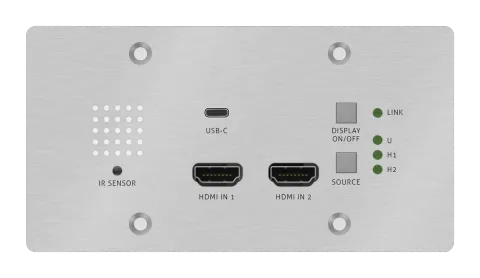
Thanks for choosing the PT-HDBT-703-TXWP 3x1 Wallplate Transmitter Switcher, which is designed to switch and extend HDMI or Slimport input signal to far-end display device, and the transmission distance is up to 131ft/40m at 4K and 229ft/70m at 1080P video by using a single CATx cable. The switcher features two HDMI and one Type-C USB inputs, it can be selected by the SOURCE AUTO button on the front panel. The switcher supports CEC. The DISPLAY ON/OFF button on front panel is used to control the far-end display device, and it can be programmed by IR learning or RS232 command to ensure the compatibility with various display devices. Moreover, 12V-48V PoC allows the switcher can be powered from the compatible HDBaseT receiver.
Features
- Supports HDMI signal up to 4K@60Hz 4:2:0, Slimport signal up to 4K@30Hz 4:4:4.
- Supports HDMI 1.4 standard and HDCP 2.2 compliant. Ensures display of content-protected media and interoperability with other HDCP compliant devices.
- Active input automatic detective.
- Extending HDMI signal 4K@60Hz up to 131ft/40m and 1080P@60Hz up to 229ft/70m.
- Supports RS232 pass-through with HDBaseT connection and local control.
- Supports IR pass-through to extend IR signal to control display device.
- The DISPLAY ON/OFF button can be programmed by IR learning feature or RS232 command.
- The HDBT port supports 12V-48V PoC input, the switcher can be powered from the compatible HDBaseT receiver by the CATx cable, and it also supports 12V-24V PoC output to provide power supply for other device like WP series Control Panel.
- Firmware upgrade by Micro-USB port.
Package List
- 1x PT-HDBT-703-TXWP
- 1x 2-pin Terminal Block
- 2x 3-pin Terminal Blocks
- 1x Power Adapter (24V 1.25A)
- 1x User Manual
Note: Please contact your distributor immediately if any damage or defect in the components is found.
Specification
| Input | |
|---|---|
| Input | (2) HDMI, (1) USB-C (Slimport) |
| Input Connector | (2) Female type A HDMI, (1) Type-C USB |
| HDMI Input Resolution | Up to 4K/UHD@60Hz 4:2:0 |
| Slimport Input Resolution | Up to 4K/UHD@30Hz 4:4:4 |
| Output | |
| Output | (1) HDBT OUT |
| Output Connector | (1) RJ45 |
| HDBT Output Resolution | Up to 4K/UHD@60Hz 4:2:0 |
| Control | |
| Control Ports | (1) IR, (1) FIRMWARE, (1) RS232, (1) IR IN |
| Control Connector | (1) Built-in IR sensor, (1) Micro-USB, (2) 3-pin terminal block |
| General | |
| Bandwidth | 10.2Gbps |
| Transmission Mode | HDBaseT |
| HDMI Version | 1.4 |
| HDCP Version | 2.2 |
| Transmission Distance | 4K@60Hz≤40M, 1080P@60Hz≤70M |
| External Power Supply | Input:100V~240V AC; Output: 24VDC 1.25A |
| Power Consumption | 5W max. (408TU only – add extra for HDBaseT receiver) |
| Operation Temperature | -10 ~ +40℃ |
| Storage Temperature | -15 ~ +55℃ |
| Relative Humidity | 10% ~ 90% |
| Dimension (W*H*D) | 151mm x 80mm x 39mm |
| Net Weight | 230g |
Front Panel
- IR: Built-in IR sensor for IR learning feature. It doesn’t support IR pass-through.
- HDMI IN 1: Type-A HDMI port to connect HDMI source.
- HDMI IN 2: Type-A HDMI port to connect HDMI source.
- USB-C: Type-C USB to connect the Macbook or other device with SlimPort output.
- SOURCE AUTO: - Press the backlit button to select the next input source. - Press and hold the button at least 3 seconds to enable auto switching mode. For more details, please refer to the 5.1 Source Switching on the page 8.
- Input LED: - U: The LED illuminates green to indicate the USB-C input is selected. - H 1: The LED illuminates green to indicate the HDMI 1 input is selected. - H 2: The LED illuminates green to indicate the HDMI 2 input is selected.
- DISPLAY ON/OFF: Turn the display ON or OFF via CEC or RS232 (Programming required). For more details, please refer to the 5.2 Display Control on the page 9.
- LINK LED: The LED illuminates green to indicate a successful data link with the HDBaseT receiver.
Rear Panel
- HDBT (POC): RJ45 HDBaseT output port to connect to the HDBT IN port of the receiver by a CATx cable. It supports 12V-48V PoC to enable the switcher can be powered from a compatible receiver.
- RS232: Either 3-pin terminal block to connect a control device (such as PC) to send the RS232 command to control this unit, or to connect a third party device which needs to be controlled by RS232 pass-through. For more details, please refer to the 6. RS232 Control on the page 10.
- DC IN: Power port to connect 24V DC power adapter.
- IR IN: 3-pin terminal block to connect an IR receiver.
Side Panel
- FIRMWARE: Micro-USB port for firmware upgrade.
System Connection
- Make sure all components and accessories included before installation.
- System should be installed in a clean environment with proper temperature and humidity.

- All of the power switches, plugs, sockets, and power cords should be insulated and safe.

- All devices should be connected before power on.
The following diagram illustrates typical input and output connection that can be utilized with the switcher:
Note: We recommend CATx cabling with alien crosstalk prevention technology to ensure the performance of HDBaseT link.
MacBook PoC HDBT OUT RS232 Tx Rx DC IN IR IN Sig 5V24V RXTX Projector Laptop Blu-ray Projector Screen Power In HDMI: HDBaseT: USB: Power: RS232: PoC
Display Control
- Press the DISPLAY ON/OFF button to turn on/off the display.
- If the incompatible display device needs to be used with this switcher, the DISPLAY ON/OFF button can be programed by IR learning or RS232 command. For more details, please refer to the 7 Button User-defined on the page 16.
RS232 Connection
According the RS232 control mode, there are two types of RS232 connection can be selected.
- When only control the local switcher, connect a control device (e.g. PC) to the RS232 port of the switcher, the connection diagram shown as below:
PoC
HDBT OUT
RS232
Tx Rx
DC IN IR IN
Sig 5V24V
Laptop
- When control the far-end third party device from local control device (e.g. PC), connect the PC to the RS232 port of the switcher, and then connect the third party device (e.g. projector) to the RS232 port of receiver. The connection diagram shown as below:
RS232 Control Software
- Installation: Copy the control software file to the control PC.
- Uninstallation: Delete all the control software files in corresponding file path.
Basic Settings:
Connect the PT-HDBT-703-TXWP with all input devices and output devices needed, then to connect it with a computer which is installed with RS232 control software. Double-click the software icon to run this software. Here take the software CommWatch.exe as example. The icon is showed as below:
PoC
HDBT OUT
RS232
Tx Rx
DC IN IR IN
Sig 5V24V
RXTX
Projector
Power In
PoC
Laptop
The interface of the control software is showed as below:
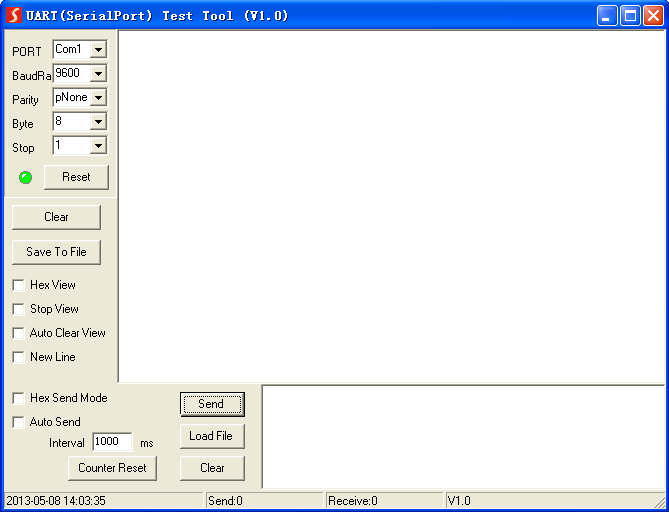
Please set the parameters of COM number, bound rate, data bit, stop bit and the parity bit correctly, and then you are able to send command in command sending area.
- Parameter configuration area
- Monitoring area, show the commands and its feedback information.
- Command sending area
RS232 Command
Communication protocol: RS232 Communication Protocol
Baud rate: 9600
Data bit: 8
Stop bit: 1
Parity bit: none
Device Control
| Command | Function | Feedback Example |
|---|---|---|
| 50617% | Restore factory default | FACTORY RESET |
| 50699% | Get firmware version | VERSION Vx.x.x |
| 50740% | Disable DISPLAY ON/OFF button. | DISABLE DISPLAY ON/OFF KEY |
| 50741% | Enable DISPLAY ON/OFF button. | ENABLE DISPLEY ON/OFF KEY |
Source Switching
| Command | Function | Feedback Example |
|---|---|---|
| 50701% | Switch to HDMI 1. | SWITCH TO HDMI1 |
| 50702% | Switch to HDMI 2. | SWITCH TO HDMI2 |
| 50704% | Switch to USB-C. | SWITCH TO USB-C |
| 50710% | Enable auto switching mode. | AUTO SWITCHING |
| 50711% | Enable manual switching mode. | MANUAL SWITCHING |
| 50712% | Get the Source Switching mode. | AUTO SWITCHING MANUAL SWITCHING |
EDID Management
The input resolution (EDID setting) can be set using RS232 commands to one of the options given in the following table.
| Command | EDID | Feedback Example |
|---|---|---|
| 50768% | 720P PCM 2CH | EDID:720P, PCM 2CH |
| 50769% | 720P Dolby/DTS PCM 6CH | EDID:720P, DOLBY/DTS PCM 6CH |
| 50770% | 1080P PCM 2CH | EDID:1080P,PCM 2CH |
| 50771% | 1080P Dolby/DTS PCM 6CH | EDID:1080P, DOLBY/DTS 6CH |
| 50772% | 4K@30Hz PCM 2CH | EDID:4K30, PCM 2CH |
| 50773% | 4K@30Hz Dolby/DTS 5.1 | EDID:4K30, DOLBY/DTS 5.1 |
| 50774% | 1280x720@60Hz DVI | EDID:1280x720@60, DVI |
| 50775% | 1920x1080@60Hz DVI | EDID:1920x1080@60, DVI |
| 50776% | 1920x1200 PCM 2CH 6CH | EDID:1920x1200, PCM 2CH 6CH |
| 50777% | 3840x2160@60Hz 4:2:0 8 bit | EDID:3840x2160@60, 4:2:0 8BIT |
| 50782% | Enable EDID user-defined mode. Uploading the user-defined EDID file by Micro-USB port within 10 seconds. | EDID: USER |
| 50783% | EDID bypass | EDID: BYPASS |
| 50784% | Get the current EDID. | EDID:720P, PCM 2CH EDID:720P, DOLBY/DTS PCM 6CH EDID:1080P,PCM 2CH EDID:1080P, DOLBY/DTS 6CH EDID:4K30, PCM 2CH EDID:4K30, DOLBY/DTS 5.1 EDID:1280x720@60, DVI EDID:1920x1080@60, DVI EDID:1920x1200, PCM 2CH 6CH EDID:3840x2160@60, 4:2:0 8BIT EDID: USER EDID: BYPASS |
CEC Control
The switcher also supports sending of a few common CEC commands using RS232 command code. Specific CEC command can also be sent from the switcher. The RS232 commands are as given in the following table. Please note that only CEC enabled devices that have the specified logical address will respond to CEC commands.
| Command | Function | Feedback Example |
|---|---|---|
| 50730% | Volume up. | CEC VOLUME INCREASE |
| 50731% | Volume down. | CEC VOLUME DECREASE |
| 50732% | Volume mute toggle. | CEC VOLUME MUTE |
| 50733% | Display on. | CEC DISPLAY ON |
| 50734% | Display off. | CEC DISPLAY OFF |
| CEC | Send CEC command “xx:xx:xx…” to control display device. | CEC |
Panel Drawing
FIRMWARE
151.00 mm
70.00 mm
60.00 mm
3.00 mm
39.10 mm
80.00 mm
48.80 mm
lower level
26.2mm
108.60 mm
39.1mm
Troubleshooting & Maintenance
| Problems | Potential Causes | Solutions |
|---|---|---|
| Color losing or no video signal output in HDMI display. | The connecting cables may not be connected correctly or it may be broken. | Check whether the cables are connected correctly and in working condition. |
| No HDMI signal output in the device while local HDMI input is in normal working state. | ||
| Output image with white noise. | ||
| POWER indicator doesn’t work or no respond to any operation. | Loose or failed power cord connection. | Ensure the power cord connection is good. |
Note: If your problem still remaining after following the above troubleshooting steps, please contact your local dealer or distributor for further assistance.
After-Sales Service
The return of a product implies the full agreement of the terms and conditions hereinafter. There terms and conditions may be changed without prior notice. If there appear some problems when running the product, please check and deal with the problems referring to this user manual. The conditions apply to the customer service provided only for products sold by an authorized distributor. Any transport costs are borne by the users during the warranty. Customer Service will accept defective product(s) in the scope of warranty coverage at the sole condition that the defeat has been clearly defined, and upon reception of the documents or copy of invoice, indicating the date of purchase, the type of product, the serial number, and the name of distributor.
Product Limited Warranty
This product will be free from defects in materials and workmanship for two years. Proof of purchase in the form of a bill of sale or receipted invoice which is evidence that the unit is within the warranty period must be presented to obtain warranty service.
What the warranty does not cover (servicing available for a fee):
- Warranty expiration.
- Factory applied serial number has been altered or removed from the product.
- Damage, deterioration or malfunction caused by:
- Normal wear and tear.
- Use of supplies or parts not meeting our specifications.
- No certificate or invoice as the proof of warranty.
- The product model showed on the warranty card does not match with the model of the product for repairing or had been altered.
- Damage caused by force majeure.
- Servicing not authorized by distributor.
- Any other causes which does not relate to a product defect.
- Delivery, installation or labor charges for installation or setup of the product.
Technical Support
For any questions or problems, contact your distributor or reseller and tell them the respective product name and version, the detailed failure situation as well as the formation of the cases.
Asking for Assistance
Technical Support:
Phone: +49 5971 800299 - 0
Fax: +49 5971 800299 – 99
Technical Support Hours:
8:30 AM to 5:00 PM Monday thru Thursday
8:30 AM to 4:00 PM Friday
Write to:
PureLink GmbH
Von-Liebig-Straße 10
D - 48432 Rheine
www.purelink.de
info@purelink.de
Legal & Compliance
Product identification
Model: PT-HDBT-703-TXWP – manual version 1.0
Trademarks and disclaimer
Product model and logo are trademarks. All other company and product names mentioned are trademarks of their respective owners. All rights reserved. No part of this publication may be copied or reproduced without prior written permission. We reserve the right to make changes to the device, packaging or manual and accept no liability for misprints.
EU conformity
PureLink hereby declares that this product PureTools PT-HDBT-703-TXWP complies with Directives 1907/2006/EU and 2011/65/EU. PureLink GmbH hereby declares that this product PureTools PT-HDBT-703-TXWP complies with Directives 2014/30/EU and 2014/35/EU.
| Directive / Regulation |
|---|
| 1907/2006/EU |
| 2011/65/EU |
| 2014/30/EU |
| 2014/35/EU |
The full text of the EU Declaration of Conformity is available at: http://www.purelink.de/ce/
FCC
Statement This equipment generates, uses and can radiate radio frequency energy and, if not installed and used in accordance with the instructions, may cause harmful interference to radio communications. It has been tested and found to comply with the limits for a Class B digital device, pursuant to part 15 of the FCC Rules. These limits are designed to provide reasonable protection against harmful interference in a commercial installation.
Disposal of electrical and electronic equipment
WEEE reg. no.: DE 93847290
The crossed-out wheelie bin symbol on the product, packaging or in this manual means that electrical and electronic equipment must not be disposed of with household waste at the end of its life. Hand in old devices free of charge at a public collection point or return them to a distributor obliged to take them back. Remove batteries and lamps that can be removed without destroying the device before handing it in, and delete any personal data stored on the device. Details are regulated by national law. By returning old devices you help protect the environment.
Packaging
Dispose of packaging separately by material (paper/cardboard, plastics) via the local collection systems. Keep packaging material away from children – risk of suffocation. Packaging register LUCID: DE5958616449295.