
Safety and Notice
The PT-SC-VGAHD VGA & Audio to HDMI Scaler Converter has been tested for conformance to safety regulations and requirements, and has been certified for international use. However, like all electronic equipments, the PT-SC-VGAHD should be used with care. Please read and follow the safety instructions to protect yourself from possible injury and to minimize the risk of damage to the unit.
- Follow all instructions and warnings marked on this unit.
- Do not attempt to service this unit yourself, except where explained in this manual.
- Provide proper ventilation and air circulation and do not use near water.
- Keep objects that might damage the device and assure that the placement of this unit is on a stable surface.
- Use only the power adapter and power cords and connection cables designed for this unit.
- Do not use liquid or aerosol cleaners to clean this unit. Always unplug the power to the device before cleaning.
Introduction
Features
- IR remote control
- Remote control via Mini-USB
- OSD control interface
- Maximum pixel rate : 165MHz
- S/PDIF & Stereo input supported
- Deinterlacer supported
- Supports nosie reduction and video enhancement features
- Over / under scanning adjustable
- Video H/V mirror supported
- Active video area adjustment supported
- USB firmware upgradable for expanding compatibility
- Wall-mount housing design for easy installation
Introduction
The PT-SC-VGAHD VGA & Audio to HDMI Scaler Converter offers an easy and instant approach for converting analog PC video (VGA) with either digital audio (S/PDIF) or analog stereo audio to digital HDMI. With this module, VGA based devices such as PC with S/PDIF or analog stereo audio can readily connect to your HDMI TV. With such a convenience, presentations, demonstrations, or digital signage become easier and more cost effective.
Package Contents
- 1x PT-SC-VGAHD
- 1x Power supply unit (+5VDC, 2A)
- 1x IR Remote control
- 1x Installation software CD
- 1x User Manual
Specification
| Model Name | PT-SC-VGAHD |
|---|---|
| Role of usage | VGA to HDMI Converter |
| Frequency bandwidth | 165MHz |
| Audio support | Stereo PCM (48KHz only) |
| ESD protection | [1] Human body model — ±19kV [air-gap discharge] & ±12kV [contact discharge] [2] Core chipset — ±2kV |
| PCB stack-up | 4-layer board [impedance control — differential 100Ω; single 50Ω] |
| Firmware update | Feasible via USB Port |
| CEC Channel | N/A |
| Input TMDS signal | 1.2 Volts [peak-to-peak] |
| Input DDC signal | 5 Volts [peak-to-peak, TTL] |
| Input | 1x VGA + 1xS/PDIF+ 1xStereo |
| Output | 1x HDMI |
| VGA connector | HD-15 [15-pin D-sub female] |
| HDMI connector | HDMI [19-pin female] |
| USB connector | Mini B |
| Mechanical | |
| Housing | Metal enclosure |
| Dimensions [L x D x H] | Model 92 x 83 x 28mm [3.6” x 3.3” x 1.1”] Package 175 x 128 x 134mm [6.9” x 5” x 5.3”] Carton 662 x 366 x 290mm [2’2” x 1’2” x 1’] |
| Weight | Model 260g [9.1oz] Package 510g [17.9oz] |
| Fixedness | Wall-mounting case with screws |
| Power supply | 5V 2A DC |
| Power consumption | 5 Watt [max] |
| Operation temperature | 0~40°C [32~104°F] |
| Storage temperature | -20~60°C [-4~140°F] |
| Relative humidity | 20~90% RH [no condensation] |
Panel Description

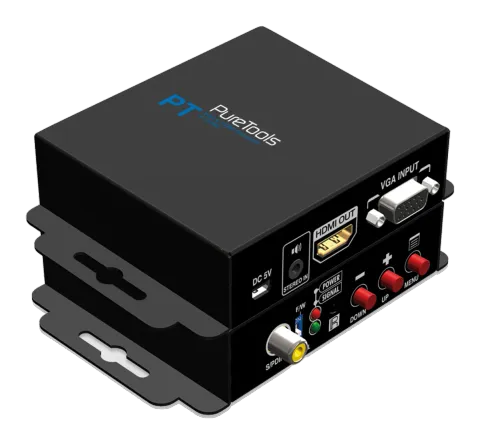
- S/PDIF AUDIO IN: connect to digital S/PDIF audio source
- DIP SWITCH: For firmware update ON [ ]: firmware update mode OFF [ ]: normal mode
- LED INDICATOR: [green]: signal indicator LED [red]: power indicator LED.
- IR SENSOR: IR sensor for receiving the IR commands from IR remote
- PUSH BUTTON [LEFT]: Down Button [MID]: Up Botton [RIGHT]: Menu/Enter Button

- +5V DC: Interlocking power jack for 5V DC power supply unit
- Mini USB: F/W update & control port
- STEREO AUDIO IN: connect to analog stereo audio source
- HDMI OUT: Connect to a HDMI display with a HDMI male-male cable here.
- VGA IN: connect to a VGA source
Connection Diagram
Installation
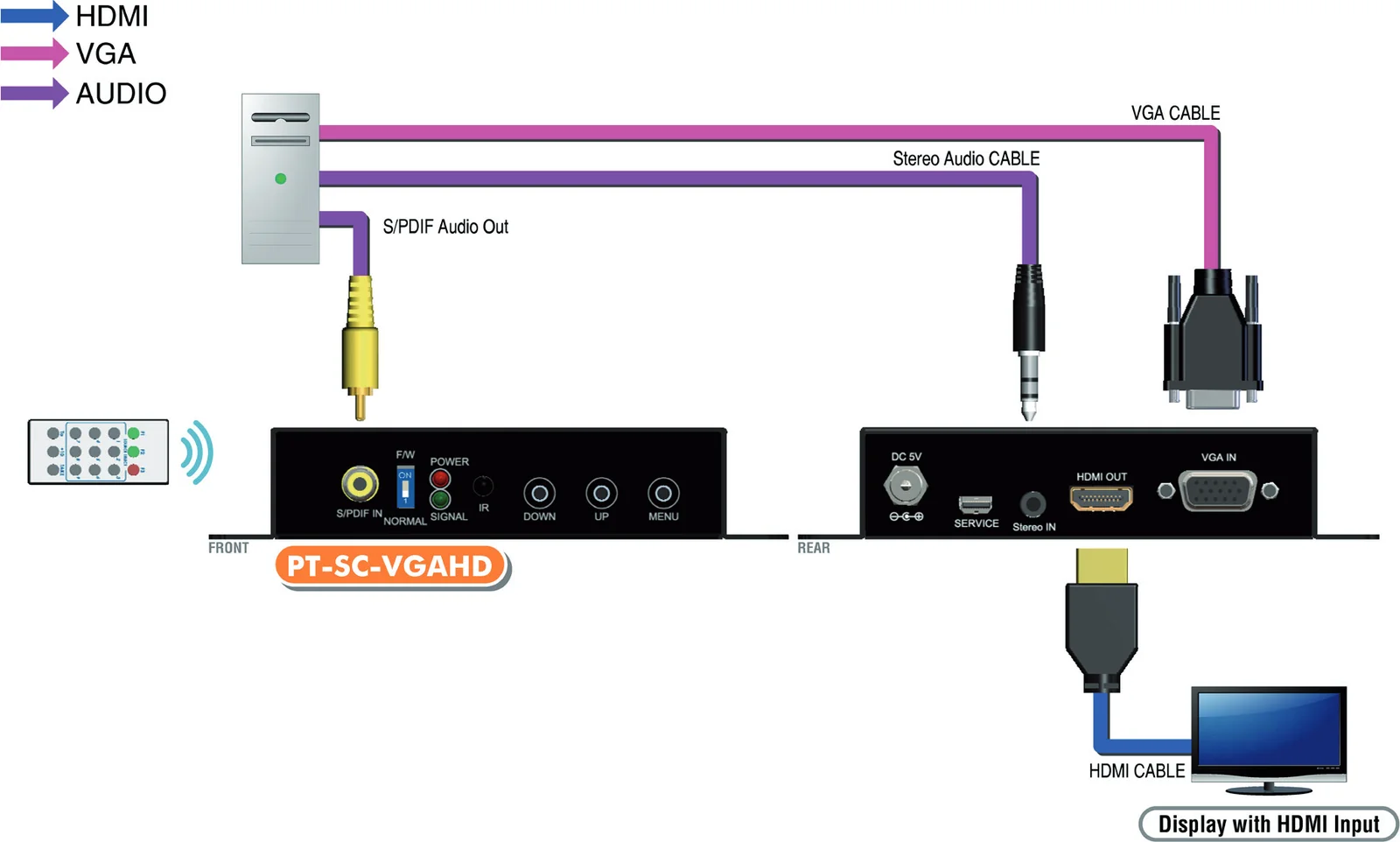
- Connect VGA source to the video input with a VGA cable.
- Connect S/PDIF or stereo audio source to RCA jack or 3.5mm earphone jack respectively.
- Connect HDMI display to the HDMI output connector with a HDMI cable
- Power up the PT-SC-VGAHD.
Operation Approach
Method A: Push-in Button
Method B: IR Remote Control
Button Function
- FREEZE Freeze video
- ASPECT RATIO Aspect ratio change
- BLANK Blank video
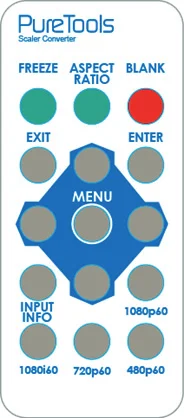
- EXIT Exit OSD
- ENTER Enter key
- UP Up key
- LEFT Left key
- RIGHT Right key
- DOWN Down key
- MENU Menu on
- INPUT INFO Source resolution information
- 1080p60 Select 1080p60 output resolution
- 1080i60 Select 1080i60 output resolution
- 720p60 Select 720p60 output resolution
- 480p60 Select 480p60 output resolution
Method C: IR Remote Control through Mini-USB port
1. COM Port Selection
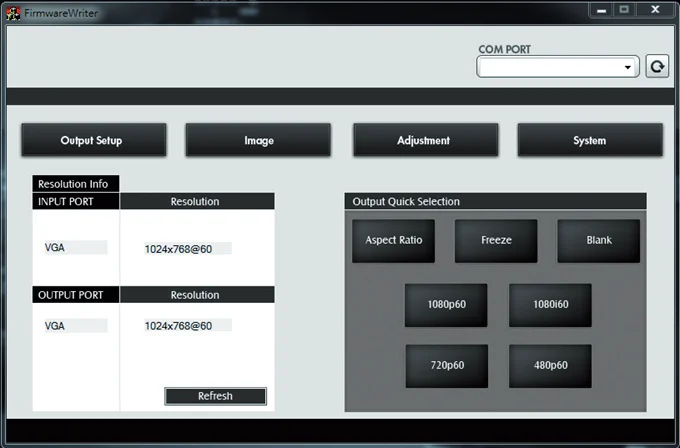
2. COM Port Detection Button
- 1 COM Port Selection
- 2 COM Port Detection Button
- 3 Output Setup Button
- 4 Image Button
- 5 Adjustment Button
- 6 System Button
- 7 Input / Output Resolution Info
- 8 Refresh Input / Output Resolution Info Button
- 9 Output Quick Selection Button
Please select the application COM PORT
Click this button to detect the COM PORT
3. Output Setup Button
Output Setup dialog with Output Resolution, Output Mode, and Default Pattern options
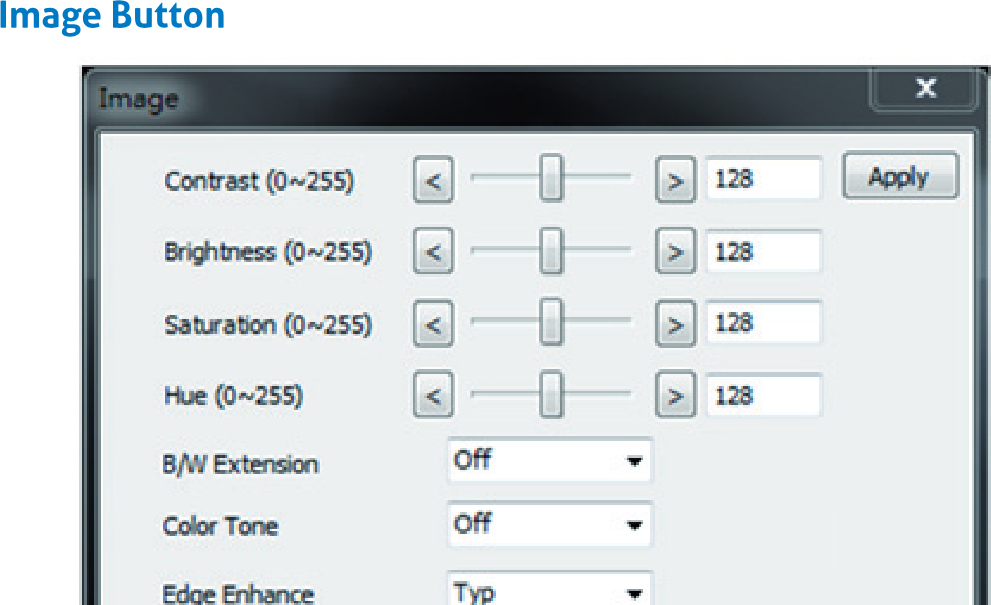
4. Image Button
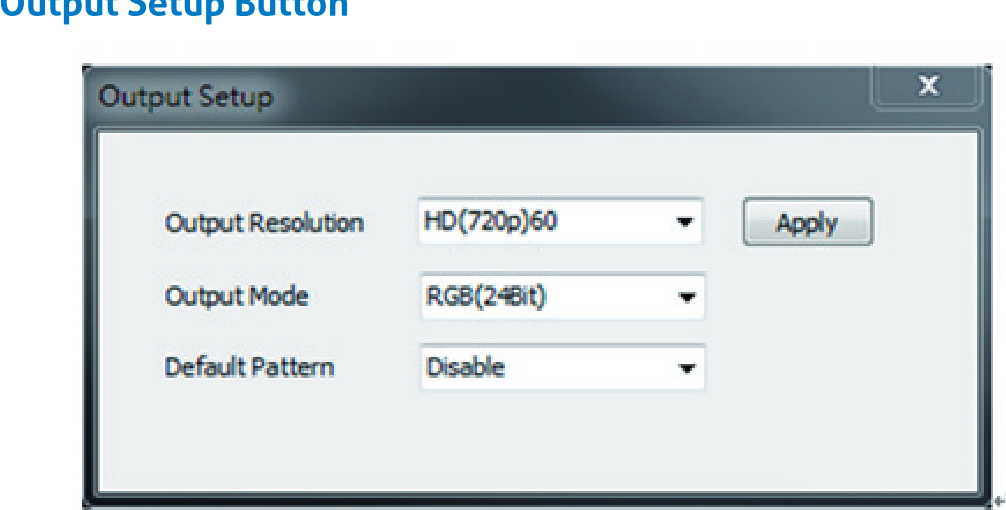
Image settings dialog with controls for Contrast, Brightness, Saturation, Hue, B/W Extension, Color Tone, Edge Enhance, and Sharpness
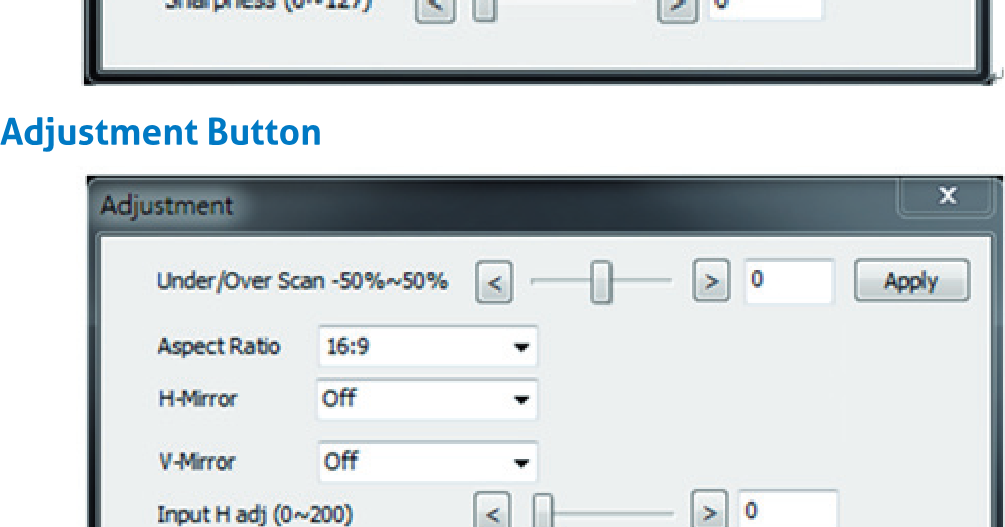
5. Adjustment Button
Adjustment dialog with controls for Under/Over Scan, Aspect Ratio, H-Mirror, V-Mirror, Input H adj, and Input V adj
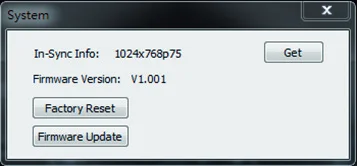
6. System Button
- In-Sync Info: To view the current input resolution
- Factory Reset Button
- Firmware Update Button
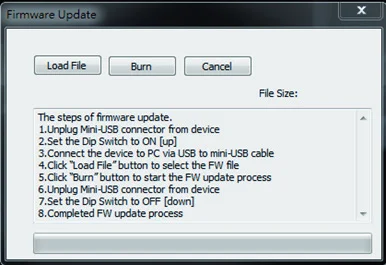
- Unplug Mini-USB connector from device
- Set the Dip Switch to ON [ ]
- Connect the device to PC via USB to mini-USB cable
- Click the FW Update button on software
- Click “Load File” button to select the FW file
- Click “Burn” button to start the FW update process
- Unplug Mini-USB connector from device
- Set the Dip Switch to OFF [ ]
- Completed FW update process
7. I/O Port and Resolution Info
To display the information about the I/O Port and the applied Resolution
8. Refresh Button
To refresh the status of the converter
9. Output Quick Selection Button
Common functions for quick setting
Warranty
Limited Warranty
The SELLER warrants the PT-SC-VGAHD VGA & Audio to HDMI Scaler Converter to be free from defects in the material and workmanship for 1 year from the date of purchase from the SELLER or an authorized dealer. Should this product fail to be in good working order within 1 year warranty period, The SELLER, at its option, repair or replace the unit, provided that the unit has not been subjected to accident, disaster, abuse or any unauthorized modifications including static discharge and power surges.
Unit that fails under conditions other than those covered will be repaired at the current price of parts and labor in effect at the time of repair. Such repairs are warranted for 90 days from the day of reshipment to the BUYER.
If the unit is delivered by mail, customers agree to insure the unit or assume the risk of loss or damage in transit. Under no circumstances will a unit be accepted without a return authorization number.
The warranty is in lieu of all other warranties expressed or implied, including without limitations, any other implied warranty or fitness or merchantability for any particular purpose, all of which are expressly disclaimed.
Proof of sale may be required in order to claim warranty. Customers outside Taiwan are responsible for shipping charges to and from the SELLER. Cables are limited to a 30 day warranty and cable must be free from any markings, scratches, and neatly coiled.
The content of this manual has been carefully checked and is believed to be accurate. However, The SELLER assumes no responsibility for any inaccuracies that may be contained in this manual. The SELLER will NOT be liable for direct, indirect, incidental, special, or consequential damages resulting from any defect or omission in this manual, even if advised of the possibility of such damages. Also, the technical information contained herein regarding the PT-SC-VGAHD features and specifications is subject to change without further notice.
Asking for Assistance
Technical Support:
Phone: +49 5971 800299 - 0
Fax: +49 5971 800299 - 99
Technical Support Hours:
8:30 AM to 5:00 PM Monday thru Thursday
8:30 AM to 4:00 PM Friday
Write To:
PureLink GmbH
Von-Liebig-Straße 10
D - 48432 Rheine
www.purelink.de
info@purelink.de
Legal & Compliance
Product identification
Model: PT-SC-VGAHD – manual version 1.0
Trademarks and disclaimer
Product model and logo are trademarks. All other company and product names mentioned are trademarks of their respective owners. All rights reserved. No part of this publication may be copied or reproduced without prior written permission. We reserve the right to make changes to the device, packaging or manual and accept no liability for misprints.
Disposal of electrical and electronic equipment
WEEE reg. no.: DE 93847290
The crossed-out wheelie bin symbol on the product, packaging or in this manual means that electrical and electronic equipment must not be disposed of with household waste at the end of its life. Hand in old devices free of charge at a public collection point or return them to a distributor obliged to take them back. Remove batteries and lamps that can be removed without destroying the device before handing it in, and delete any personal data stored on the device. Details are regulated by national law. By returning old devices you help protect the environment.
Batteries
Batteries must not be disposed of with household waste. Return used batteries free of charge to collection points or retailers.
Packaging
Dispose of packaging separately by material (paper/cardboard, plastics) via the local collection systems. Keep packaging material away from children – risk of suffocation. Packaging register LUCID: DE5958616449295.