
Safety Precautions
Thank you for purchasing the PT-SCREEN-200.
This manual serves as the operating manual for the PT-SCREEN-200 LCD monitors, and hence, documents instructions and precautions in relation to this product.
Please read this manual carefully before using the product.
To prevent harm or damage to the user, product, property or other people, please adhere to the safe and correct methods of using this product.
Caution: Ignoring the safety precautions documented here could result in serious injuries or even death.
- Please adhere to the instructions documented in this user manual. PureLink GmbH shall not be responsible for any damage, harm or injuries caused by improper use of our product not documented in this manual.
- Use only the accessories (AC adapters, cables, etc.) bundled in the same package or those provided by PureLink GmbH.
- Do not insert flammable or metal objects into the product. Also, do not apply or use near water. Doing so could result in electrical shock or fire. If any of the above occurs, stop using the product immediately and contact our customer service.
- Do not use/place/install this product or its cable(s) near high temperature equipment. Deformation or melting of the housing could occur, resulting in electrical shocks or fire.
- Place/install this product in/on a stable location. In an unstable location, the product may fall, causing injuries and the product could be damaged from the fall.
- Do not dismantle or modify the housing/product. Damage to the product, electrical shock or fire could occur. If smoke, strange smell or strange noises are emitted from the product during use, stop using the product immediately, disconnect all cables and contact our customer service.
- When disconnecting/connecting the AC adapter, hold the plugs properly while doing so. Pulling the cords forcefully could result in the cable breaking. Malfunction of device, electrical shocks or fire could occur.
- Do not touch the product or cables with wet hands. Electrical shocks or equipment damage could occur.
- Disconnect all cables before cleaning. Do not use liquid, aerosol cleaners or organic solvents (benzene, thinner, etc.) to clean the product.
- Do not wash the product with water. Discoloration, deformation or damage could occur. Please use neutral cleaners and a soft cloth to clean the product. Use a dry cloth to absorb any remaining moisture after cleaning.
- When the product it not being used for extended periods of time, disconnect the AC adapter and cables. Fire could occur or the equipment could be damaged.
HDBaseT RX Embedded 10.1” LCD Monitor PT-SCREEN-200 User Manual
The PT-SCREEN-200 is HDBaseT CTS Class B certified 10.1” high resolution (1280x800), high brightness (350cd/m2) and high contrast ratio (800:1) IPS LCD monitor. With a built-in HDBaseT receiver, the PT-SCREEN-200 is able to display video/audio signals via HDBaseT and be powered by just a LAN cable. The PT-SCREEN-200 is also able to extend the remote control signales bi-directionally with a built-in IR receiver/transmitter. This HDBaseT transmission range can be extended up to 60m. With downscan function, higher resolution (up to 1080p) images are automatically adjusted to fit the native 1280x800 screen.
The PT-SCREEN-200 utilizes an IPS panel with a high resolution of 1280x800 and a brightness of 350 cd/m2. IPS panels boast wide view angles of 170°(V) / 170°(H), high contrast ratio (800:1) and vibrant color display capability.
Package Contents
- PT-SCREEN-200 1pcs
- Remote Control 1pcs (battery included)
- AC Adaptor 1pcs
- User Manual 1pcs
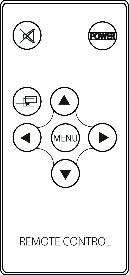
Note: The Remote Control is used to control PT-SCREEN-200 from HDBT TX side. It can NOT be used to control PT-SCREEN-200 locally.
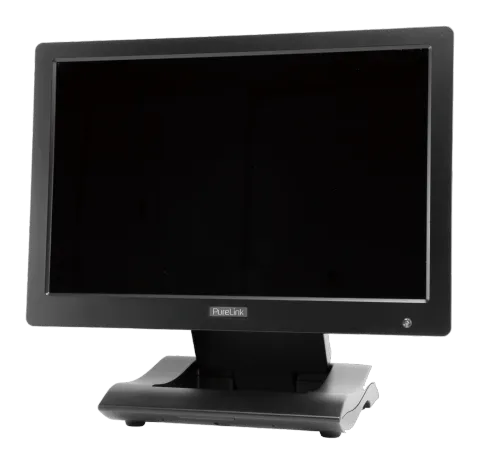
- PT-SCREEN-200
- AC Adaptor
- Remote Control
Parts and Feature Description
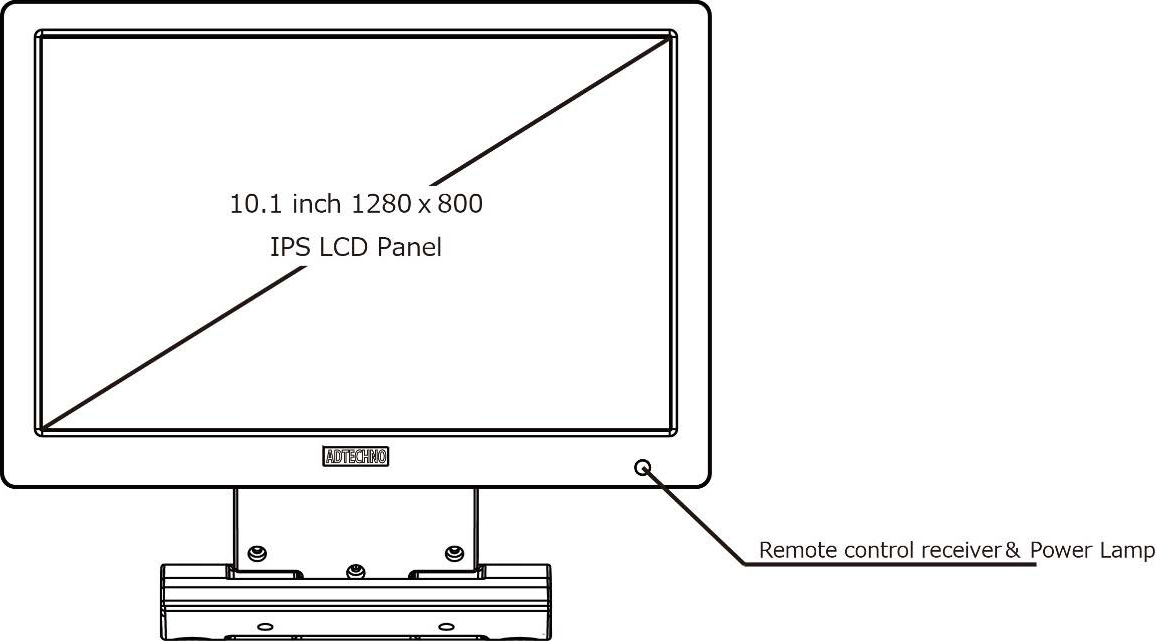
Front:
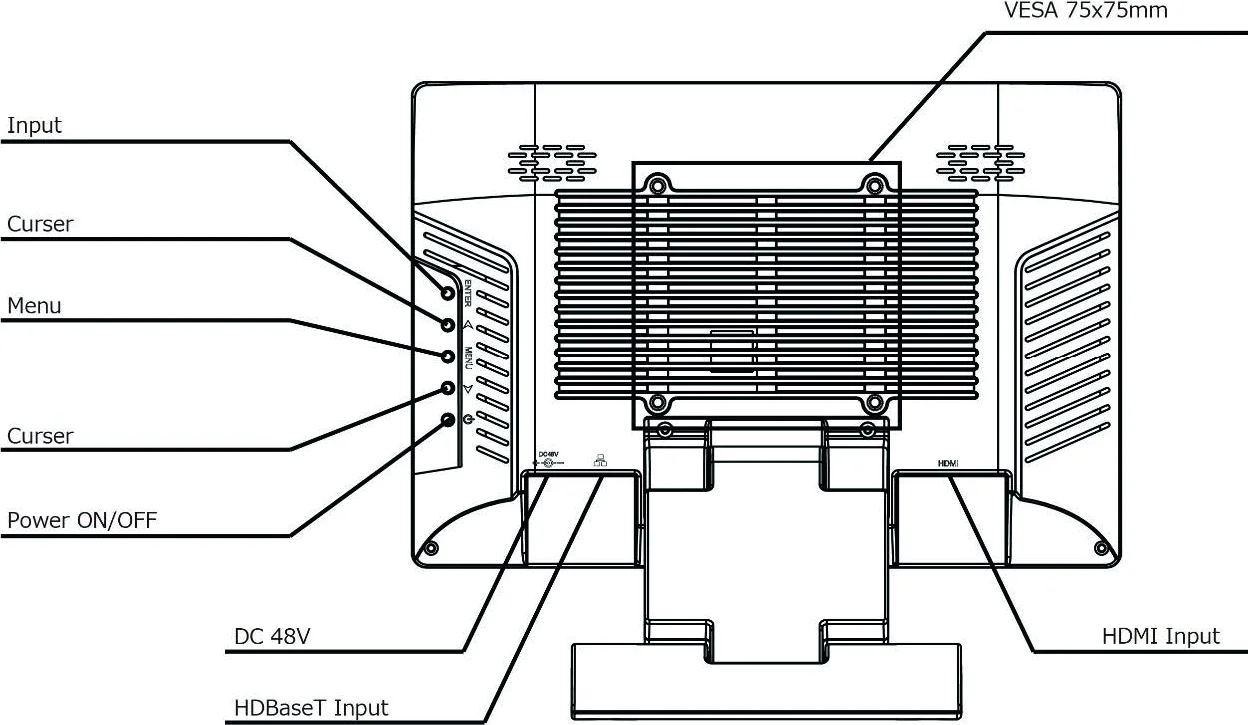
Rear:
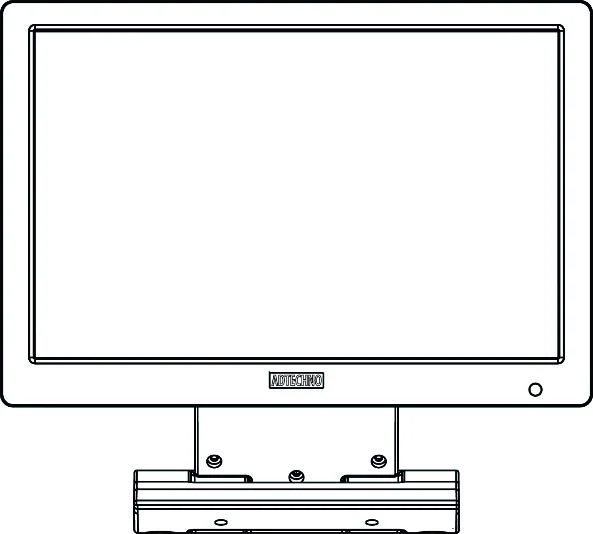
- 10.1 inch 1280 x 800 IPS LCD Panel
- Remote control receiver & Power lamp
- VESA 75x75mm
- HDMI Input
- HDBaseT Input
- DC 48V
- Power ON/OFF
- Cursor
- Menu
- Cursor
- Input
Front
Remote Control Receiver and Power Lamp:
Remote Control Receiver: Use the remote control of the signal source connected with HDBT TX to point to this Remote Control Receiver to control the signal source. Power Lamp: Lamp is red when power off. Lamp is on when power is on.
Rear
- A/V: Push A/V to select the input signal between HDMI and HDBT
- Menu: Button for OSD menu Keylock function: Press Menu key for 8 sec, OSD will be locked. To unlock, press Menu key for 8 sec again
- Curser: ◀ move curser downward ▶ move curser upward
- Power ON/OFF Button: Push button to ON/OFF display
- HDBaseT (RJ-45): HDBaseT signal sent from HDBaseT Transmitter by CAT 5E/6 cable
- HDMI: HDMI Input。User can connect media player HDMI output to this port.
- DC Input: If no 48V PoE HDBaseT transmitter used, user can use AC Adaptor to power the display.
- VESA 75x75mm: Screw hole for VESA mounting
Remote Control
- POWER: Power On / Off
- MUTE: Audio off
- INPUT: Input Source Selection
- MENU: Start Menu selection
- ▲ : No function
- ▼ : No function
- ◀ : Move cursor up
- ▶ : Move cursor down
Note: The Remote Control is used to control PT-SCREEN-200 from HDBT TX side. It can NOT be used to control PT-SCREEN-200 locally.
Input Signal
Use A/V key to select the input signal, HDBaseT or HDMI
HDBaseT:
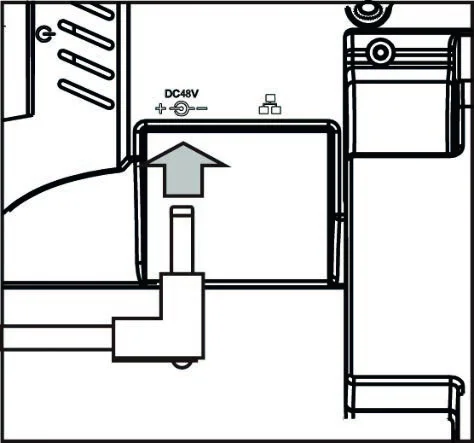
Connect the LAN cable as indicated by the arrow
HDMI:
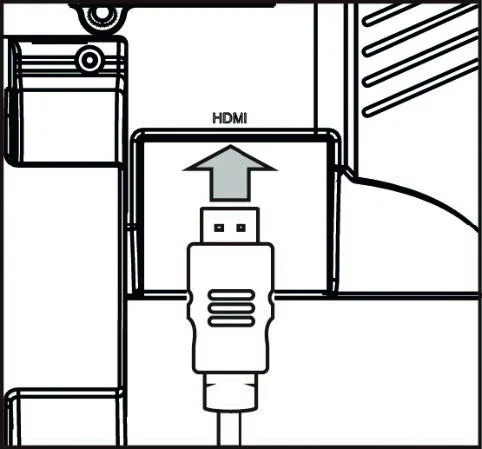
Connect the HDMI cable as indicated by the arrow
AC Adaptor
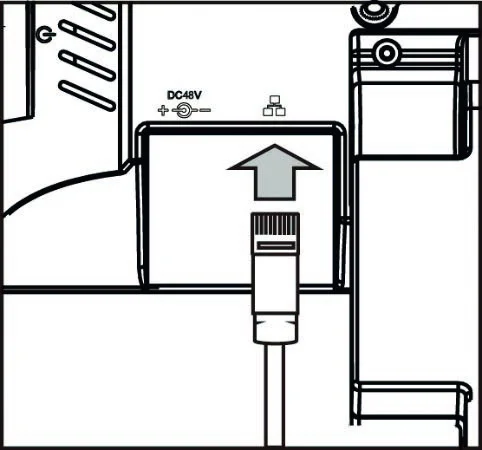
If there is no 48V POE, please use provided AC Adaptor and connect as indicated by the arrow
Note: If PT-SCREEN-200 will not be used for long time, suggest remove the AC adaptor from PT-SCREEN-200.
Input Signal
| Resolution | Frequency (Hz) |
|---|---|
| 480i | 59.94 / 60 |
| 480p | 59.94 / 60 |
| 576i | 50 |
| 579p | 50 |
| 720p | 25 / 29.97 / 30 / 50 / 59.94 / 60 |
| 1080i | 50 / 59.94 / 60 |
| 1080p | 23.976 / 23.98 / 24 / 25 / 29.97 / 30 / 50 / 59.94 / 60 |
Specification
| Specifications | |
|---|---|
| Model No. | PT-SCREEN-200 |
| Color | Black |
| LCD | |
| Size | 10.1“ |
| Panel Type | IPS |
| Resolution | 1280x800 |
| Brightness | 350 cd/m² |
| Contrast | 800:1 |
| View Angle | 170° (H) / 170° (V) |
| HDBaseT | |
| Distance | 60m |
| Max Input | 1080p60 |
| IR | Bi-Directional |
| HDCP | Rev 1.4 |
| Input | HDBaseT (RJ-45) x 1 / HDMI x 1 |
| Speaker | 2W x2 |
| VESA (FPMPMI) | 75 x 75 mm |
| Power | DC 48V (PoE) |
| Power Consumption | 16W |
| Operating Temperature | 0 ~ 50°C |
| Storage Temperature | -20 ~ 65°C |
| Dimension | 245(W) x 168(H) x 29(D) mm |
| Weight | About 630g - Stand included |
- Accessory: Remote Control / AC Adaptor / User Manual
- Certificate: HDBaseT CTS Class B/ FCC/ CE/ PSE (AC Adaptor) / RoHS
Warranty
- Limited warranty: PureLink warrants that its products will be free from defects in materials and workmanship for one year, starting from the date of shipment (As per recorded in the invoice or receipt). This warranty covers only the main device. Accessories and consumables are not covered under warranty. Proof of purchase in the form of a bill of sale or receipted invoice to proof the validity of the warranty as well as the corresponding product serial number must be presented during servicing to obtain free warranty service within the warranty period.
- Note: To ensure warranty validity, please retain the receipt or invoice during purchase.
- Out-of-warranty Services: PureLink provides paid servicing for products that are out-of-warranty or damages/malfunctions occurring outside of warranty coverage such as: Exceeded warranty period Product seal with serial number has been altered or removed No proof of purchase or invalid serial number Delivery, installation or labor charges for installation or setup of the product Damage or malfunction caused by: Wear and tear Incorrect usage Use of unauthorized equipment or accessories Use of third-party accessories not meeting product specifications Damage caused by other connected faulty equipment Tempering Force majeure or Act of God Servicing not authorized by PureLink GmbH Any other cause of damage that is considered a defect
- Warranty/Servicing delivery charges : Any delivery charges incurred from shipping the product for servicing within or after the warranty period is to be covered by the user.
- Technical support: PureLinks technical support team is available via email or live telephone support to help you with any problems regarding our products. To ease the process, please prepare the following information before contacting us: Product model and name Details of the problem(s) Details leading up to the cause of the problem(s)
- Remarks: For any queries or problems, contact your nearest distributor or email us at: info@purelink.de
Asking for Assistance
Technical Support:
Phone: +49 5971 800299 - 0
Fax: +49 5971 800299 - 99
Technical Support Hours:
8:30 AM to 5:00 PM Monday thru Thursday
8:30 AM to 4:00 PM Friday
Write To:
PureLink GmbH
Von-Liebig-Straße 10
D - 48432 Rheine
www.purelink.de
info@purelink.de
Legal & Compliance
Product identification
Model: PT-SCREEN-200 – manual version 1.0
Trademarks and disclaimer
Product model and logo are trademarks. All other company and product names mentioned are trademarks of their respective owners. All rights reserved. No part of this publication may be copied or reproduced without prior written permission. We reserve the right to make changes to the device, packaging or manual and accept no liability for misprints.
FCC
This equipment has been tested and found to comply with the limits of a Class B digital device, pursuant of Part 15 of the FCC Rules. These limits are designed to provide reasonable protection against harmful interference in a residential installation. This equipment generates, uses and radiates radio frequency energy and, if not installed and used in accordance with the instructions, may cause harmful interference in the radio communications. If this equipment does cause harmful interference to radio or television reception, which can be determined by turning the equipment off and on, you are encouraged to try to correct the interference by one or more of the following measures:
Disposal of electrical and electronic equipment
WEEE reg. no.: DE 93847290
The crossed-out wheelie bin symbol on the product, packaging or in this manual means that electrical and electronic equipment must not be disposed of with household waste at the end of its life. Hand in old devices free of charge at a public collection point or return them to a distributor obliged to take them back. Remove batteries and lamps that can be removed without destroying the device before handing it in, and delete any personal data stored on the device. Details are regulated by national law. By returning old devices you help protect the environment.
Batteries
Batteries must not be disposed of with household waste. Return used batteries free of charge to collection points or retailers.
Packaging
Dispose of packaging separately by material (paper/cardboard, plastics) via the local collection systems. Keep packaging material away from children – risk of suffocation. Packaging register LUCID: DE5958616449295.