
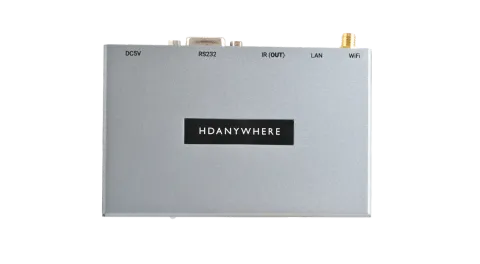
Contents, Glossary of terms
Glossary of terms
Consumer Electronics Control (CEC) CEC is a method to control AV devices connected together over HDMI.
Control System
A control system is hardware that is responsible for centralising heating, lighting, security, AV and automation (+ much more) within a property. The Zone Processor can be integrated in to a control system by using an integration driver. See page 17.
Infrared Transmitter (IR TX)
This cable connects to the “IR (OUT)” port on HDANYWHERE devices and is designed to emit infrared (IR) signals from its opposite, transmitter, end. The emitter is typically placed over the receiving IR window of the device you wish to control.
Local Area Network (LAN)
A LAN is a network of interconnected devices with a limited area of operation like a home or office building. Devices inside the LAN are all connected together by either Ethernet cable or wirelessly using WiFi. The Zone Processor can connect to your LAN using both methods.
uControl
A control app, available for iOS. uControl is required to set up your Zone Processor and can be used as a universal remote control.
uControl IR Pack
Every AV device responds to different IR commands. To control a device in uControl using IR you must first download a uControl IR Pack by accessing the Zone Processor settings. All uControl IR Packs are stored on HDANYWHERE’s cloud platform: A HDA Cloud account is required before any packs can be downloaded.
Features
For optimum performance and safety, please read these instructions carefully before connecting, operating or configuring this product.
Please keep this manual for future reference.
Note: Surge protection is recommended.
This device contains sensitive electrical components that may be damaged by electrical spikes, surges, electric shock, lightning strikes, etc. The usage of surge protection systems is recommended in order to protect and extend the life of your system.
UK designed. China assembled.
Patented GB 2548668
For patents in other countries please visit: https://hdanywhere.com/patents
- Network connectivity over Ethernet or WiFi
- IR control (up to 5 devices)
- CEC display control (ZP5 only)
- Two-way RS232 communication
- Works with uControl (iOS)
- Amazon Alexa compatible
- Remotely managable
- Includes HDA API 2.1
- Compatible with 3rd party control systems
- WiFi range extension
In the box
- x1 uControl Zone Processor 1
- x1 Detachable WiFi aerial
- x1 Infrared Transmitter cable (1.5m) (IR TX)
- x1 5V 1A Power Supply with adapters (UK,EU,US,AU)
- x1 RS232 cable (Male to Female)
- x1 Mounting Bracket
- x1 User Manual
- x1 uControl Zone Processor 5
- x1 Detachable WiFi aerial
- x5 Infrared Transmitter cable (1.5m) (IR TX)
- x1 5V 1A Power Supply with adapters (UK,EU,US,AU)
- x1 RS232 cable (Male to Female)
- x1 Mounting Bracket
- x1 User Manual
| Name | Product code |
|---|---|
| uControl Zone Processor 1 | ZP1 |
| uControl Zone Processor 5 | ZP5 |
Specification
Specifications
| Parameter | Value |
|---|---|
| HDMI version | HDMI 1.4 |
| Control ports | ZP1: x1 IR TX, x1 RS232 ZP5: x1 HDMI-CEC, x5 IR TX, x1 RS232 |
| Infrared | 20Khz - 60Khz |
| Aerial connector | SMA |
| Aerial frequency | 2400 - 2500Mhz |
| ESD protection | ±8kV (Air-gap discharge) ±4kV (Contact discharge) |
| Power consumption | ZP1: 0.8W (Maximum) ZP5: 1.15W (Maximum) |
| Power supply | 5V 1A |
| Operating temperature | 0°C - 40°C / 32°F - 104°F |
| Storage temperature | -20°C - 60°C / -4°F - 140°F |
| Relative humidity | 20 - 90% (Non-condensing) |
| Housing | Aluminium |
| Colour | Grey (Carbonite) |
| Dimensions (W/D/H) | ZP1: 108 x 68.5 x 20 mm / 4.25 x 2.69 x 0.78 inches ZP5: 176 x 68.5 x 20 / 7.01 x 2.69 x 0.78 inches |
| Weight | ZP1: 120g / 4.2 ounces ZP5: 180g / 6.3 ounces |
| Package weight | ZP1: 650g / 22.9 ounces ZP5: 750g / 26.4 ounces |
ZP1 panel illustration + description
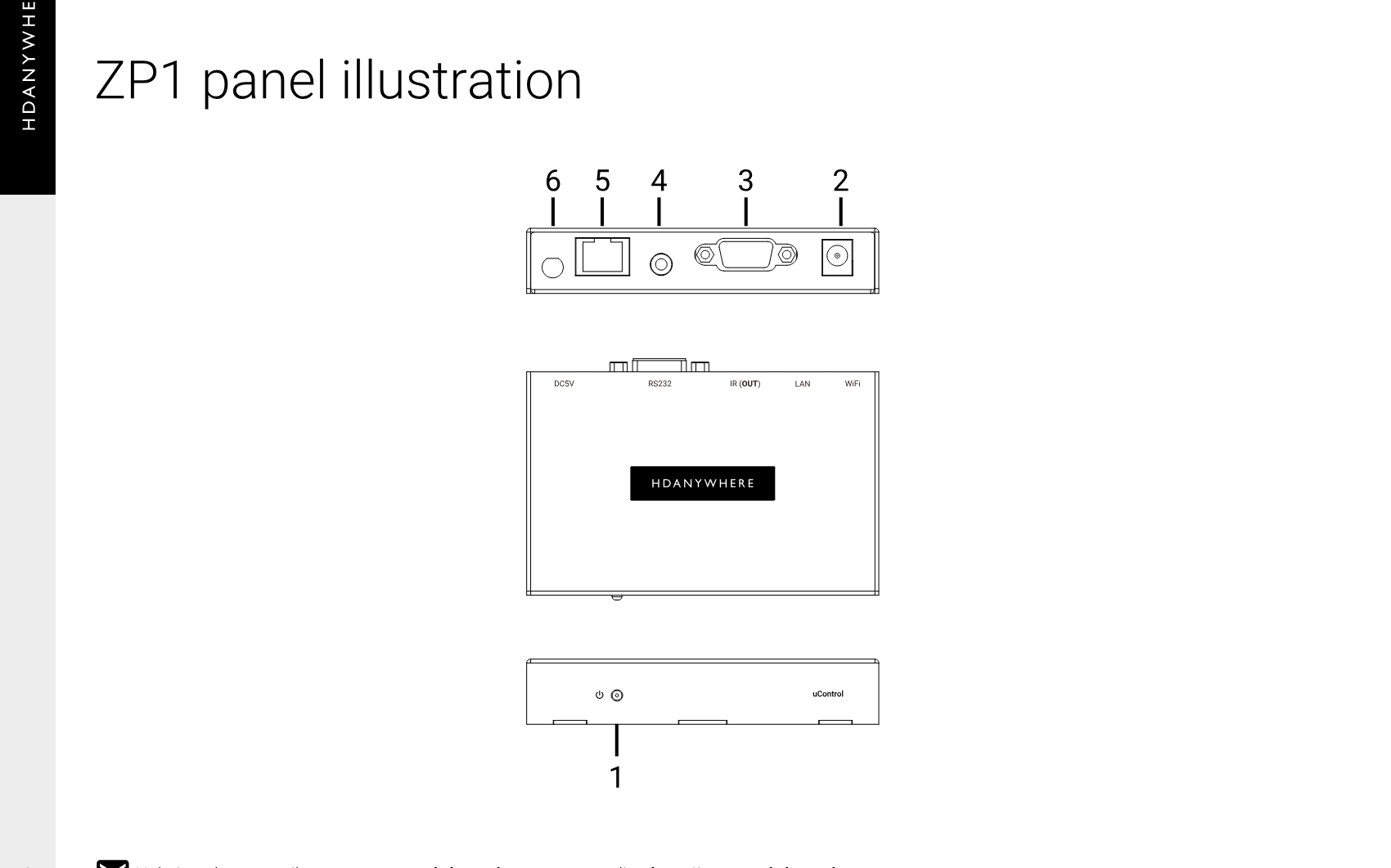
ZP1 panel illustration
Description
- Power: Indicator light. If this light is on and solid then the Zone Processor has power. If this light is flashing then the Zone Processor is in Discovery Mode.
- DC5V: Connect the supplied power supply to this port to provide power to the Zone Processor.
- Serial Port: Connect a serial cable to this port to send RS232 commands to a compatible device.
- IR (OUT): Connect an IR TX to the “IR (OUT)” to enable remote (IR) control of any AV device local to the Zone Processor.
- LAN: Connect an Ethernet cable from your router to allow the Zone Processor access to the LAN.
- WiFi: Connect the detachable WiFi aerial to connect to LAN over WiFi.
Enabling operation over WiFi:
The ZP1 ships with Ethernet mode active by default meaning that connection over WiFi will not automatically work. To enable WiFi connectivity you must first connect the ZP1 to your LAN via an Ethernet cable and then use uControl to put the ZP1 into Discovery Mode. Refer to “Power up & setup in uControl” instructions on page 14.
ZP5 panel illustration + description
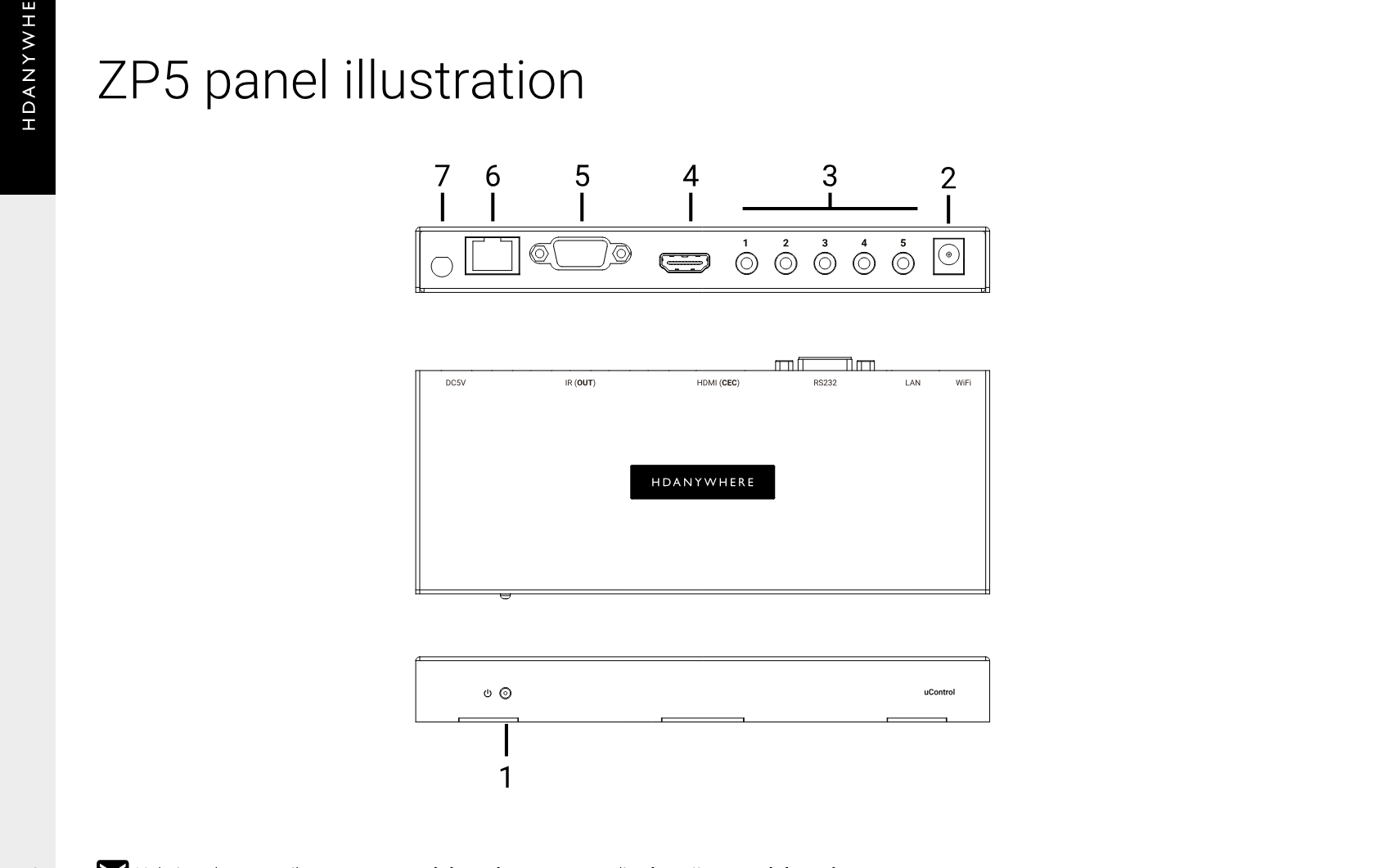
ZP5 panel illustration
Description
- Power: Indicator light. If this light is on and solid then the Zone Processor has power. If this light is flashing then the Zone Processor is in Discovery Mode.
- DC5V: Connect the supplied power supply to this port to provide power to the Zone Processor.
- IR (OUT) 1-5: Connect an IR TX to the “IR (OUT)” ports to enable remote (IR) control of any AV device local to the Zone Processor.
- HDMI (CEC): Connect this port to your display using a HDMI cable to enable display control using CEC.
- Serial Port: Connect a serial cable to this port to send RS232 commands to a compatible device.
- LAN: Connect an Ethernet cable from your router to allow the Zone Processor access to the LAN.
- WiFi: Connect the detachable WiFi aerial to connect to LAN over WiFi.
Enabling operation over WiFi:
The ZP5 ships with Ethernet mode active by default meaning that connection over WiFi will not automatically work. To enable WiFi connectivity you must first connect the ZP5 to your LAN via an Ethernet cable and then use uControl to put the ZP5 into Discovery Mode. Refer to “Power up & setup in uControl” instructions on page 14.
IR (Infrared) control
The uControl Zone Processor can transmit IR signals using the supplied IR TX cable to control almost any AV device. The ZP1 has 1 IR TX port and the ZP5 has 5.
Sending IR commands from the Zone Processor
- Connect an IR TX to port labelled “IR (OUT)” on the Zone Processor.
- Place the IR TX bud (small teardrop part) in front of the IR window of the device that you wish to control.
- Search and download the uControl IR pack for your AV device. The Zone Processor must be set up first. See “Power up & setup in uControl” on page 16.
- uControl will walk you through a short command test. If your device responds to the test command you’re set up correctly.
IR Transmitter (IR TX) 1.5m
CEC control
Consumer Electronics Control (CEC) is a feature within HDMI that allows you to command and control other CEC enabled devices that are connected through HDMI. Different manufacturers have different names for CEC, each with slightly different capabilities. The Zone Processor 5 has the ability to send CEC control commands to a display only.
Caution: CEC is standardised but support is not mandatory. Some display manufacturers may support some CEC commands, others may not support it at all.
Within the Zone Processor is our uControl CEC library. Unlike the uControl IR packs you cannot add, edit or remove the CEC library. The CEC library contains a record of all standardised CEC commands. It is important to note that whilst HDANYWHERE has tried to include all standard codes, and as many custom codes as possible, not all manufacturers support CEC universally.
Using CEC in uControl with your Zone Processor
uControl supports CEC display control which can be enabled from within uControl’s settings page. Display: power, navigation, source and volume controls will be available. Should control not work on your display then you can disable CEC control view and use IR instead.
Power up & setup in uControl app
Setting up for WiFi and putting the Zone Processor into Discovery Mode
To configure operation for WiFi you will need to put the device into Discovery Mode first. This can only be done using an Ethernet cable directly connected to the LAN port from your router or an active LAN port in the property.
- Ensure that all devices are turned off.
- Use a HDMI cable to connect your display to the “HDMI (CEC)” port on the Zone Processor (ZP5 only) if you intend to use CEC control.
- If any devices require IR control, ensure that an IR TX is connected to the “IR (OUT)” port and is positioned with the emitter bud directly in front of, or attached to, the IR window of the device(s) you wish to control.
- Connect the WiFi aerial to the “WiFi” port on the Zone Processor if you intend to use WiFi as your connection method.
- Important: If you are connecting to LAN via Ethernet or WiFi then connect a cable between your router and the “LAN” port.
- Plug in the supplied power lead, the Zone Processor will automatically power on with its LED indicator lit and solid.
- The Zone Processor will start its power up sequence (this can take up to 120 seconds). During this period, follow instructions in step #8.
- Install uControl on your iOS phone or tablet.
- Open uControl. You will be presented with an intro screen which will automatically disappear or can be swiped away.
- You will be at the home screen. This screen is only visible when no Zone Processor is connected to uControl. Your following choice is dependent on the way you wish to connect it to your network.
- A If you are using Ethernet to connect to your Zone Processor then select “Connect to System”
- B If you plan to connect to your Zone Processor using WiFi then select “Advanced” followed by “Find Devices”
- If you selected option #10A then uControl will detect your Zone Processor and will connect directly to it. Setup is complete.
- If you selected option #10B then uControl will search your network and will find the Zone Processor. Select the option “Enable Discovery Mode”.
- The Zone Processor will automatically disable its connection over Ethernet and will start to broadcast its own WiFi SSID. You will be asked to confirm that the power LED is flashing. Depending on the network conditions this LED can take up to 30 seconds to start flashing. uControl will prompt you to confirm this before proceeding.
- uControl will walk you through the process of joining the Zone Processor to your LAN using WiFi. You will need your router SSID and Password details to hand to complete connection.
- After you have successfully joined your LAN over WiFi then the power LED will stop flashing and will remain solid. Setup is complete. The Ethernet cable can now be removed.
Zone Processor control methods
The Zone Processor has been designed to be operated and controlled in numerous ways depending on your requirements. There are no control interfaces on the device itself so attention needs to be paid to the method by which the Zone Processor will be controlled.
uControl app
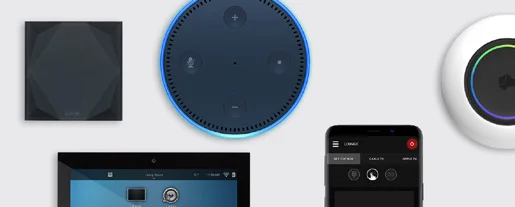
Available for free on iOS, uControl is the Zone Processor’s native method of control. By downloading uControl IR packs or using the uControl CEC library comprehensive control is possible. In the absence of a third-party control system, HDANYWHERE recommends uControl as the method to control your Zone Processor on a daily basis.
Voice
The Zone Processor supports voice control as standard via an Amazon Echo (Alexa) device. Voice control is not designed to act as a primary control method but to assist the other methods listed on this page. Using voice it is possible to change channels, execute sequences, turning devices on or off and basic transport commands such as play/pause/forwards/backward. Please note that Amazon Alexa is not available in all countries.
Third-party control system
Control via a third-party control system is supported using our latest and most advanced API to date. For an up-to-date list of systems that MHUB supports please visit the “Control Drivers” section of our support site: http://support.hdanywhere.com. Control varies depending on the control system being used but typically, switching is supported with other drivers able to offer more.
Integration with a control system
The uControl Zone Processor works with many control system providers. Find the latest drivers to download from http://support.hdanywhere.com.
Building your own control solution
Download the API here: https://cloud.hdanywhere.com/docs/api/hda_api.pdf
Example usage diagram
Using ZP1 to enable control of a ceiling mounted projector
A Zone Processor 1 is being used to create a zone called “Cinema” and within the Cinema control over a ceiling mounted projector is made possible. Almost all projector commands can be sent from uControl to the projector over the ZP1’s WiFi connection, removing the need for a fixed Ethernet connection.
Control can be further extended by installing an Amazon Echo device and using Alexa to command the projector to turn on or off or execute a sequence.
IR RX/TX Cable
Diagram 1.
Note: The Zone Processor has been designed so that it can be installed in multiple ways. The purpose of the diagram is to illustrate a typical/example setup. If you are unsure how you might install this device into your property then contact support@hdanywhere.com or contact an HDA Pro (https://hdanywhere.com/dealers-and-installers/) for further assistance.
Using a ZP5 with a control system to hide AV devices in a cupboard and trigger a TV lift using RS232
A ZP5 is being used with Control4 (a control system) to control the TV lift using RS232 via the Zone Processor’s Control4 CEC/RS232 driver.
IR ports on the Zone Processor act as native IR ports within Control4’s Composer software and ports 1 & 2 can be targeted to output IR commands directly from within Control4.
Additionally the TV’s on/off operation is being controlled via CEC removing the need for visible IR hardware.
HDMI Cable
TV lift motion
RS232
IR TX Cable
Diagram 2.
2 Year Guarantee / WHO WE ARE
1. We are HD CONNECTIVITY LTD trading as HDANYWHERE (“HDA”), a limited company registered under number 06046737 in England and Wales with its registered offices at The Haysfield, Malvern, WR14 1GF, United Kingdom.
OUR GUARANTEE TO YOU
2. We, HDANYWHERE warrant to you, the end user of the HDA hardware (the “Products”) that on the date of delivery of the Products to you, and for a period of 2 years from that date of delivery, the Products shall:
- match any description that has been provided to you;
- be free from any significant defects in their design, the materials used to make them, and the way they are made;
- be of satisfactory quality (within the meaning of the Consumer Rights Act 2015); and
- be fit for any purpose held out by us.
This 2 year period, or, if the period has been extended to 3 years in accordance with paragraph 3, will be the “Guarantee Period”. We offer this guarantee to all our customers who are resident and have an address in Great Britain and Northern Ireland.
EXTENDING YOUR GUARANTEE (NOT APPLICABLE TO ANY XTND OR ZONE PROCESSOR PRODUCT)
3. On registering your Products with the HDA Cloud, the guarantee offered in paragraph 2 by us will automatically extend for a period of one year, provided that your registration takes place within 30 days from the date of delivery. The one year guarantee extension starts automatically from the date that the original 2 year guarantee ends.
HOW TO CLAIM ON YOUR GUARANTEE AND YOUR REMEDIES
4. Subject to paragraphs 5 and 6 of this guarantee, Your sole remedies under Our guarantee to You are as follows:
- Up to 30 days: we will repair or replace your Products or provide you with a full refund of the price of the defective Products at your option.
- Up to 6 Months: we will repair or replace your Products. If we are unable to repair or replace your Products we will provide you with a full refund of the price of the defective Products.
- Up to 2 (3) Years: we will repair or replace your Products. If we are unable to repair or replace your Products we will provide you with a partial refund of the price of the defective Products based upon the devaluation of the Products since the time of purchase.
2 Year Guarantee
- In order to claim under the guarantee given to you in paragraph 2 you will need to:
- give us notice in writing of your intention to claim under the guarantee during the Guarantee Period, and do so within a reasonable time after finding that some or all of the Products do not comply with the guarantee set out in paragraph 2;
- show that the Products that you claim are defective, have been examined by a HDA Pro or other authorised or suitably qualified installer, and that they have confirmed in writing that the suspected defect in the Products stems solely from a fault in the HDA hardware;
- give us a reasonable opportunity to examine the Products in question;
- provide us with an order number and a dated sales or delivery receipt from an HDA Distributor, HDA Pro or other authorised dealer, reseller or installer of the Products.
- obtain from us in advance of returning the Products a return merchandise authorisation and/or case number ; and
- (if asked to do so by us) return such Products to our place of business at our cost.
CIRCUMSTANCES WHERE YOUR GUARANTEE DOESN’T APPLY
- We shall not be liable for the Products’ failure to comply with the guarantee set out in paragraph 2 in any of the following events:
- If you make any further use of the Products after giving us notice of an issue in accordance with paragraph 5;
- the defect arises because you failed to follow our oral or written instructions as to the storage, installation , use and maintenance of the Products;
- the defect arises as a result of your use of the Products with any other software or hardware that is not compatible with the Products;
- the products are used by you for any commercial purpose, including rental or demonstrative purposes;
- you alter or repair the Products without the written consent of HDA;
- the defect arises as a result of an act of god, fair wear and tear, or your misuse, abuse, unreasonable use, wilful damage, negligence, or abnormal storage of the Products or by any other causes unrelated to defective hardware or manufacturing;
- where the serial number has been altered, defaced or removed;
- where the warranty seal on the system has been altered, defaced or removed; or
- where the Products differ from their description as a result of changes made to ensure they comply with applicable statutory or regulatory requirements.
TRANSFERRING YOUR GUARANTEE TO SOMEONE ELSE
HDA will not accept any liability under such guarantee unless you are the original customer or can produce a letter or chain of letters from the original customer and subsequent customers (where appropriate) transferring the benefit of the guarantee to you.
PRODUCTS THAT ARE NOT COVERED BY THIS GUARANTEE
This guarantee does not cover products sold and clearly marked “as is”, “B-grade”, or with faults. This guarantee does not apply to any system software that is preinstalled in the HDA hardware, or is subsequently provided via update or upgrade releases. Any and all HDA software is licensed to you under the terms of a separate end user licence agreement found here: https://hdanywhere.com/legals
HOW THIS GUARANTEE WORKS WITH OUR EULA
We may void this guarantee if we reasonably believe that the HDA system has been used in a manner that violates terms of our separate End User Licence Agreement (EULA) for the HDA software. You assume all-risk and liabilities associated with the use of third party products in conjunction with the Products.
YOUR STATUTORY RIGHTS
This guarantee is in addition to your statutory rights (including under the Consumer Rights Act) which are not affected by this guarantee.
GENERAL TERMS OF THIS GUARANTEE
- Except as provided in this guarantee, we shall have no liability to you in respect of the Products’ failure to comply with the guarantee set out in paragraph 2.
- We reserve the right to amend or withdraw this guarantee at any time although for the avoidance of doubt any guarantees that are in existence at such a time will be honoured.
- These Conditions shall apply to any repaired or replacement Product supplied by us.
GUARANTEE CONTACT INFORMATION
To contact (support@hdanywhere.com) or call HDANYWHERE Technical Support (call charges will depend on your telephone provider. Please check with your operator for exact charges). The team is available 9am - 5pm weekdays. To help us handle your query promptly, please have your invoice number and model SKU and serial ready.
EU Conformity
Hereby, HDANYWHERE declares that this HDMI connectivity device is in compliance with the essential requirements and other relevant provisions of the following Directives: 2006/95/EC (LVD Directive); 2004/108/EC (EMC Directive); 1999/5/EC (R&TTE Directive). The full text of the EU declaration of conformity is available in the compliance section at HDANYWHERE.com/legals
Recycling your device properly
In some areas, the disposal of certain electronic devices is regulated. Make sure you dispose of or recycle your device in accordance with your local laws and regulations.
Important information
Let us know what you think.
We would love to hear how we could further improve our products and services.
If we can make something better, please let us know!
support@hdanywhere.com
Copyright © HDANYWHERE.
HDANYWHERETM is a trading name of HD Connectivity Ltd.
Registered in England & Wales 06046737 VAT 913222367
Note: HDANYWHERE assumes no responsibility for any inaccuracies that may be contained in this document. In no event will HDANYWHERE be liable for direct, indirect, special, incidental, or consequential damages resulting from any defect or omission in this document, even if advised of the possibility of such damages.
Legal & Compliance
Product identification
Models: HDA-250823, HDA-250824 – manual version 1.0
Trademarks and disclaimer
Product model and logo are trademarks. All other company and product names mentioned are trademarks of their respective owners. All rights reserved. No part of this publication may be copied or reproduced without prior written permission. We reserve the right to make changes to the device, packaging or manual and accept no liability for misprints.
WEEE reg. no.: DE 93847290
Packaging
Dispose of packaging separately by material (paper/cardboard, plastics) via the local collection systems. Keep packaging material away from children – risk of suffocation. Packaging register LUCID: DE5958616449295.