
INTRODUCTION
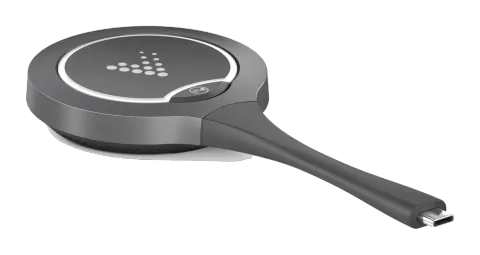
This product is a USB Type-C wireless screen transmitter dongle. It supports the sharing of contents from screen sources (e.g. laptop) wirelessly to a display device. It supports transmission of up to 1080p video signals with audio.
The device also supports plug and play, and is fully compatible with most operation systems, such as Window7/8/10/11, Mac OS, Android OS.
FEATURES
- Supports up to 1080P 30Hz video wirelessly transmitted with low latency.
- Plug and play, no installation and no drivers are needed.
- Quick and simple, just press the button to transmit video & audio.
- Supports 2.4G & 5G frequency band.
- Low power consumption and transmitting a sufficient distance to meet requirements in a meeting room scenario.
- Compatible with main-stream OS, such as Window7/10, macOS and Android OS, iOS.
PACKAGE CONTENTS
- 1 x USB Dongle
- 1 x User Manual
SPECIFICATIONS
TECHNICAL
| Max Resolution | 1080P @ 30Hz |
|---|---|
| Terminal Type | 1x Type-C |
| Frequency | 5GHz (default) and 2.4GHz |
| Wireless transmission protocol | IEEE 802.11 a/b/g/n, IEEE 802.11ac |
| Authentication protocol | WPA2-PSK or IEEE 802.1X |
USB
| Operate System | Windows 7/8/10, macOS, iOS, Android |
|---|---|
| USB Port | Type-C DP-Alt mode |
GENERAL
| Operating Temperature | 0°C to 40°C |
|---|---|
| Storage Temperature | -20°C to 70°C |
| Humidity | 10% to 90%, non-condensing |
| ESD Protection | Human-body Model: ±8kV (Air-gap discharge)/ ±4kV (Contact discharge) |
| Input Voltage | 5V (Power over USB) |
| Power Consumption (Max) | 2.14 W |
| Product size (w x h x l) | 68.98 mm x 16.4 mm x 165.19 mm |
| Product Weight | 60g (net weight) |
PANEL DESCRIPTION
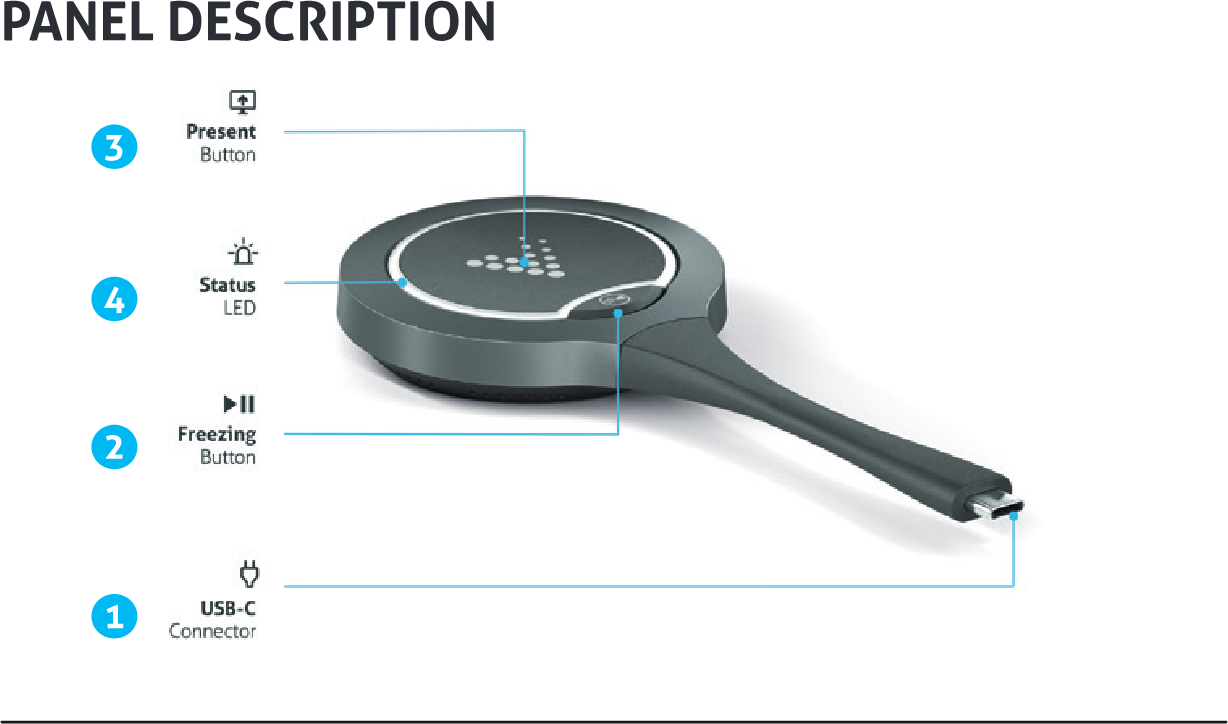
Panel description diagram with indicators for: 1 USB-C Connector, 2 Freezing Button, 3 Present Button, 4 Status LED
| NO. | NAME | DESCRIPTION |
|---|---|---|
| 1 | USB-C Connector | Connect to the VB300 for pairing. Connect with laptop for wireless casting. |
| 2 | Freezing Button | Press the button to freeze/unfreeze the projected screen. Note: When freezing/unfreezing the projected screen, the audio projected through the Dongle is also paused. |
| 3 | Present Button | Short Press: Short press the button to project screen or disconnect projection. Hold the Button for about 3s: When there are multiple screens (including screen projected through the Dongle) shown on the sink display, hold the button for about 3s, the screen projected through the Dongle will be shown in full screen. |
| 4 | Status LED | Blinking: When connected to the receiver: The Dongle is being paired with the receiver. When connected to the computer: The Dongle is preparing and establishing connection with the receiver. Blinking white dimly: The Dongle is projecting to the screen. Solid on: When connected to the receiver: USB Dongle was paired with the receiver successfully. When connected to the computer: USB Dongle is connected to the receiver successfully. You can press the button to start for screen projection now. |
APPLICATION
1. Pair the USB Dongle with VB300
- Starting pairing will appear on the display screen connected to the VB300, and the VB300 will set its soft AP’s SSID and password for the dongle. The Dongle’s LED will be blinking.
- Once pairing is done, “Pairing succeeded” will appear on the display screen. The Dongle’s LED will be solid on.
2. Connect the Dongle to a laptop.
After pairing with the VB300 successfully, connect the Dongle to a laptop. Once the Dongle connects to the receiver successfully, the Dongle’s LED stops blinking and turns solid on.
Note: Please make sure the Type-C port of laptop has a video output, some laptop’s Type-C ports are just for charging.
- Now short press the Projecting button, you can project your laptops screen to the display screen immediately. The LED will blink white dimly.
- Enter full screen mode: When there are split screens shown on the sink display, press and hold the projecting button for about 3 seconds, your laptop’s screen will then be displayed in full screen.
- Freezing the projected screen: Press the Freezing button, the screen projected by the Dongle on the sink display will be frozen and the audio projected through Dongle is also paused. A transparent pause icon will appear on the center of the projected screen.
- Press the button again, the screen will be unfrozen, the icon will disappear, and the projected screen will be synchronized with the source device to display.
Note: The freezing function doesn't affect the source device.
CE CONFORMITY
PureLink GmbH hereby declares that this product is in compliance with the essential requirements and other relevant provisions of the RED Directive 2014/53/EU and the RoHS Directive 2011/65/EU amended by 2015/863/EU.
PureLink GmbH hereby declares that this product is in compliance with the essential requirements of the Electromagnetic Compatibility Regulations 2016 and all other applicable UK regulations.
The EU Declaration of Conformity is available here:
www.purelink.de
DISPOSAL OF DEVICE
WEEE-Reg.-Nr. DE 93847290
According to the European WEEE Directive, electrical and electronic equipment may not be disposed of with household waste. As a consumer, you are obliged to return electrical and electronic equipment free of charge at the end of its service life to the public collection points set up for this purpose or to the point of sale. Details on this are regulated by the respective national law.
The symbol on the product, the instructions for use or the packaging refers to these regulations Recycling old appliances in this way is an important contribution to the protection of our environment.
BATTERY RECYCLING INFORMATION
Batteries and accumulators must not be disposed of in household waste. Please dispose of used batteries and accumulators properly, following local regulations. Consumers in Germany are required by law to take all batteries and accumulators to a collection point in their community/borough or to retailers to have them disposed of in an environmentally friendly way. Otherwise they pose a potential risk to the environment and to human health.
WARRANTY AND LIABILITY
If any fault or damage is detected on your product, please contact your dealer and provide your sales slip or invoice as evidence of the purchase, if necessary. Your dealer will repair the fault either on site, or send the device PureLink. Please describe the possible faults in detail – only then you can be assured that faults, occurring only rarely, will be found and repaired with certainty! Any use other than described in this user`s manual is not permitted.
DISCLAIMER OF LIABILITY
PureLink GmbH will not be held liable, nor provide any warranty for damage resulting from improper installation, assembly and use of the product, or failure to observe the operating instructions and/or safety instructions.
TRADEMARK
Product model and logo are trademarks. All other trademarks mentioned in this manual are acknowledged as the property of the trademark owners. No part of this publication may be copied or reproduced without prior written permission of their respective owners.
Legal & Compliance
Product identification
Model: VL-DGL100 – manual version 1.0
Packaging
Dispose of packaging separately by material (paper/cardboard, plastics) via the local collection systems. Keep packaging material away from children – risk of suffocation. Packaging register LUCID: DE5958616449295.